

Mobile app registration
How to register your mobile app with the Zeta Marketing Platform (ZMP) so you can start sending push notifications, in-app messages, and app inbox entries.
Registering your mobile app with ZMP unlocks the full potential of mobile campaigns, allowing you to deliver personalized, real-time messages directly to your users.
Before you start
- Access to ZMP with administrator or campaign manager permissions.
- Your app's bundle identifier (iOS) or package name (Android).
- Push notification credentials: an APNS certificate or
.p8key (iOS), and a Firebase Cloud Messaging service account JSON (Android). - Your development team available for SDK integration. See the Developer Guide for platform-specific instructions.
Note: App registration and SDK integration happen in parallel. Your marketing team handles the ZMP configuration described here; your development team handles the code integration described in the Developer Guides.
On this page
- Navigate to app settings
- Enter app details
- Generate an authentication token
- Upload push notification certificates
- Initialize the SDK
- Test the integration
- Conversational assistant
Navigate to app settings
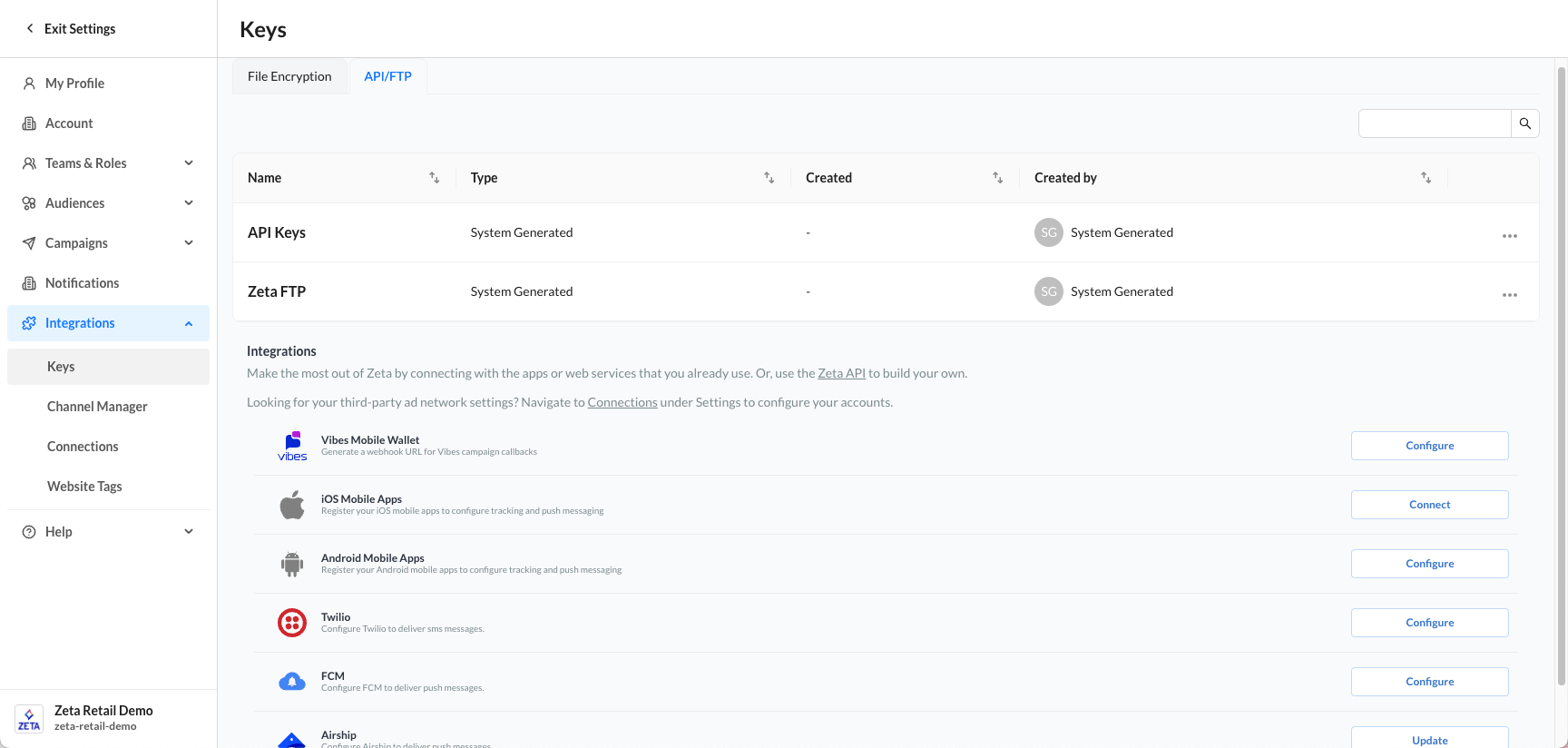
- Log in to ZMP.
- Navigate to Settings > Integrations > Keys
- Click the Configure button on either platform to begin the registration process.
Enter app details
Provide the following information for your app:
| Field | Required | Description |
|---|---|---|
| Connection Name | Required | A unique name for your app in ZMP (for example, "MyApp iOS"). |
| App ID (Android) / Bundle ID (iOS) | Required | Your app's unique application identifier. |
| App Icon | Optional | An icon to be used with this app in ZMP. |
| Description | Optional | A description of this app registration. |
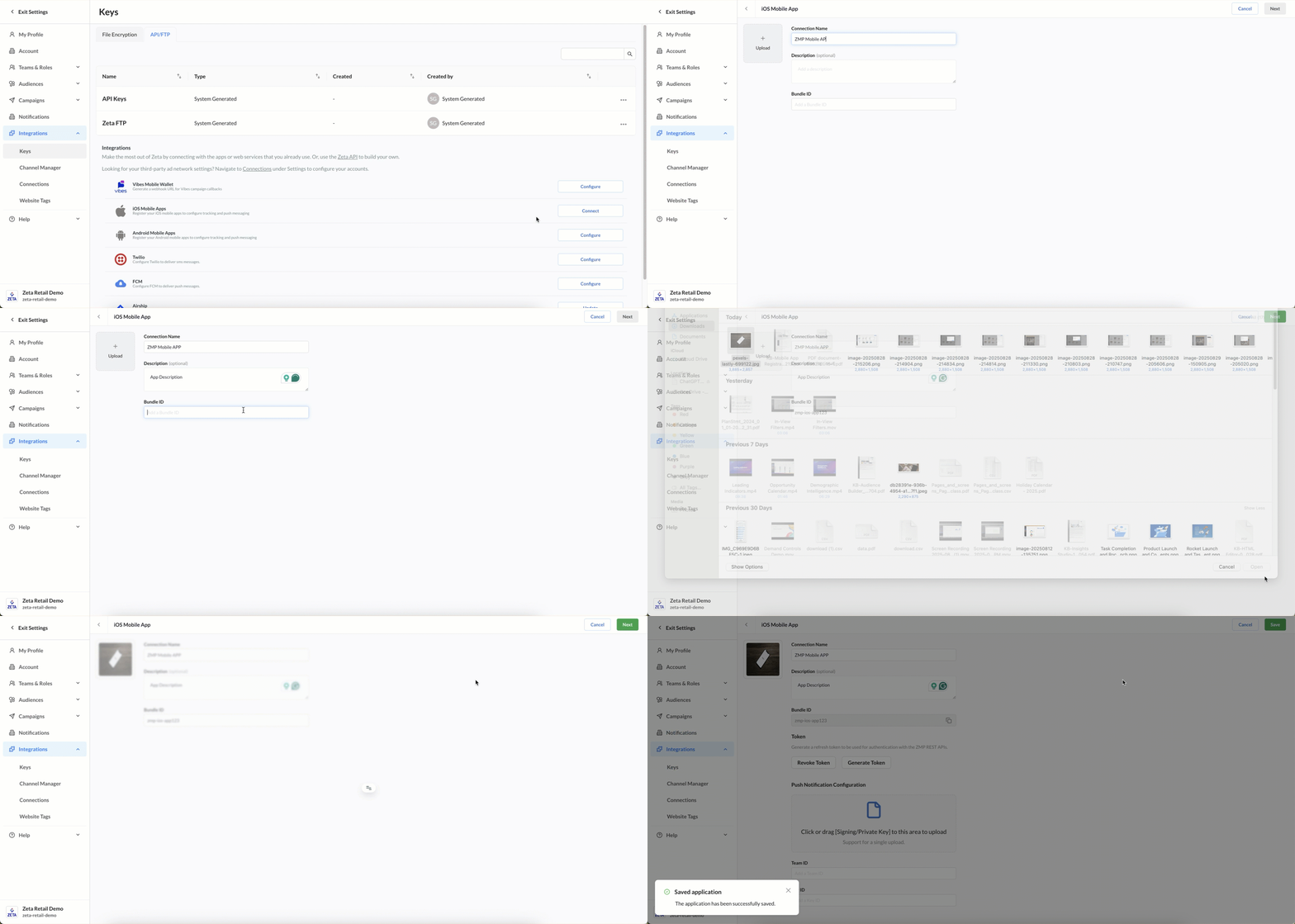
Click Save after entering your details.
Note: Register each platform separately. If you have both an iOS and Android app, create two separate app entries.
Generate an authentication token
After entering your app details, generate an authentication token for the SDK:
- Click Generate Token to create a new token.
- Click Revoke Token to invalidate an existing token.
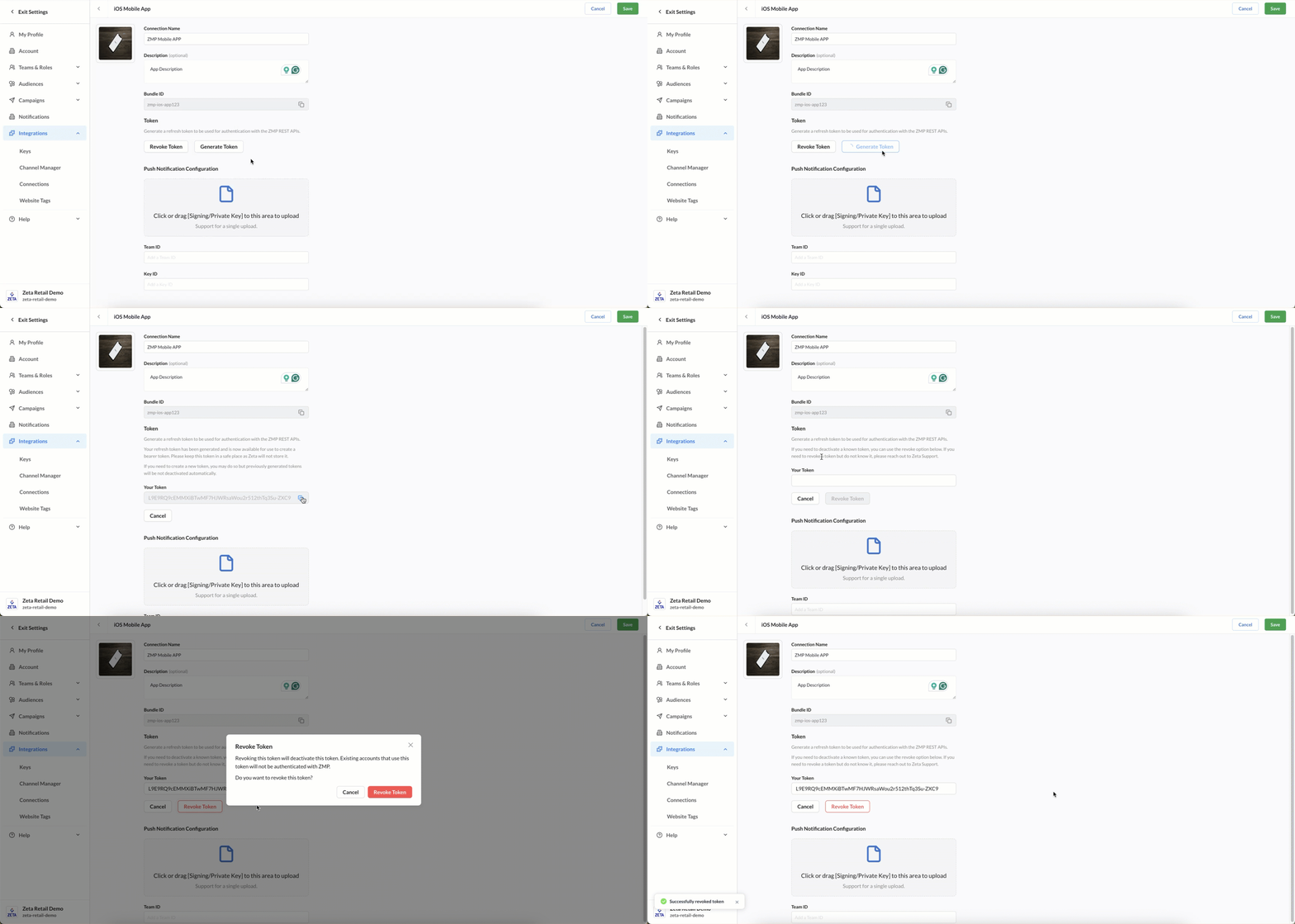
The token (refresh_token) and your site ID (site_id) are the values your development team needs to initialize the SDK.
Important: Treat the token as sensitive. Do not share it in public channels or commit it to source control. SDK tokens have write-only access, restricted to updating profiles, tracking events, and logging errors. Tokens are scoped to mobile-specific APIs and tied to app-specific metadata.
Upload push notification certificates
To send push notifications, ZMP needs credentials to communicate with Apple Push Notification service (APNs) or Firebase Cloud Messaging (FCM). This step is optional if you are not using push notifications.
iOS (APNs)
- In the app settings, locate the Push Notification Configuration section.
- Upload your
.p8authentication key file. - Enter your Team ID and Key ID from your Apple Developer account.
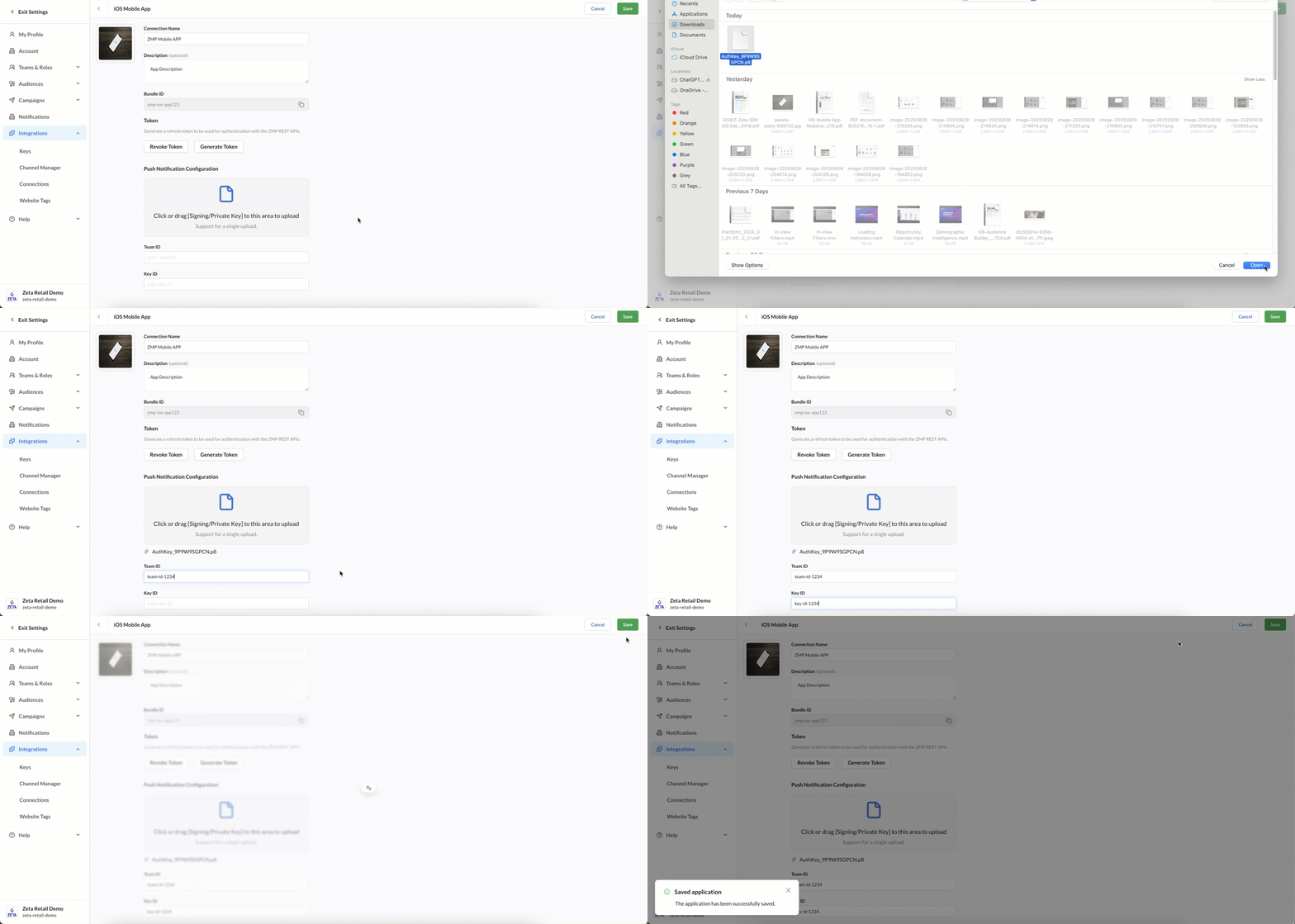
Android (FCM)
- In the app settings, locate the Push Notification Configuration section.
- Upload your Firebase Private Key JSON file.
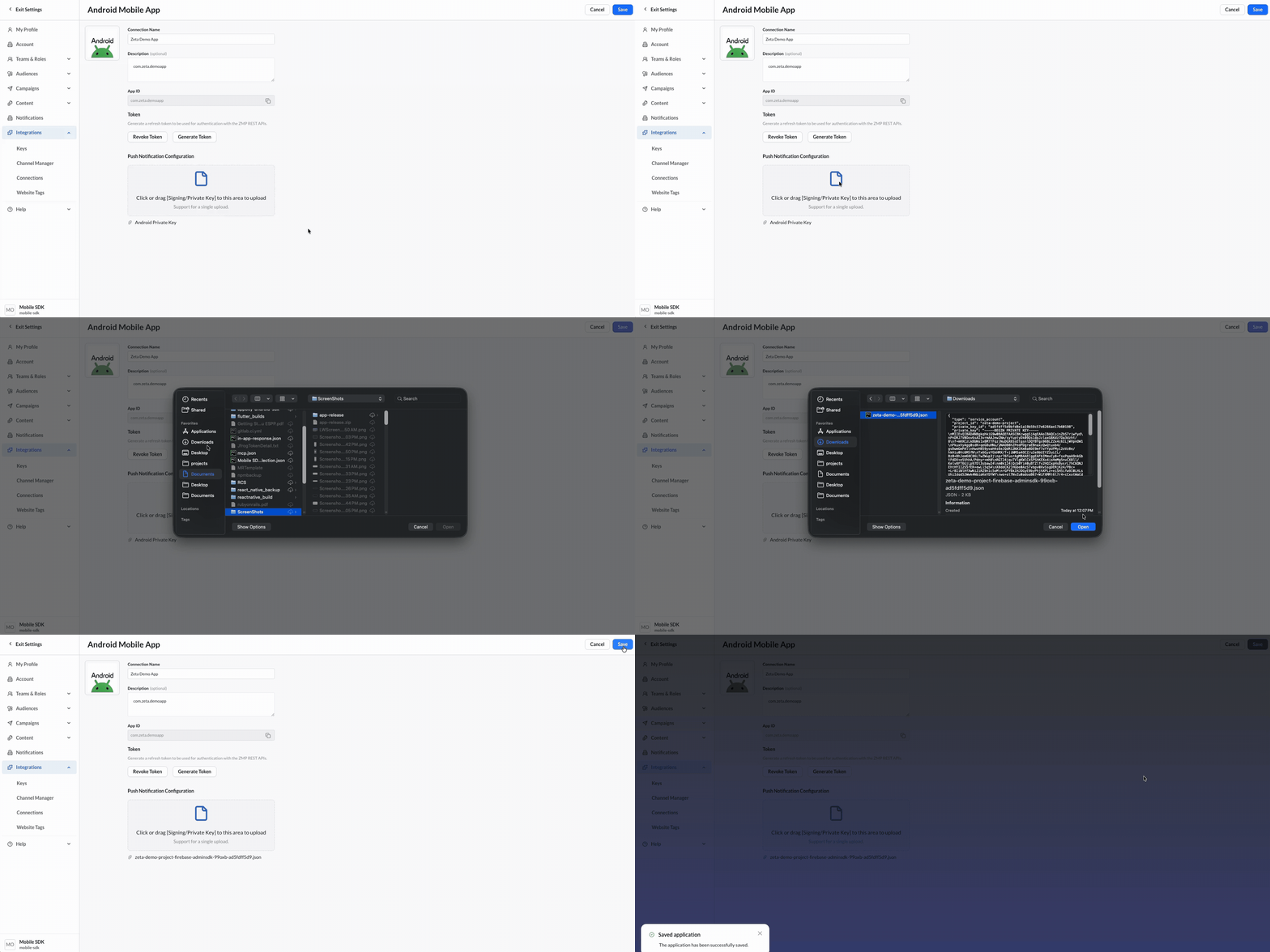
Initialize the SDK
Pass the site_id, refresh_token, and env_type to the SDK during initialization. The env_type parameter controls which APNs host is used for push delivery:
| Value | Use for |
|---|---|
sandbox | Development builds (Xcode debug, TestFlight internal) |
production | App Store and TestFlight external builds |
Note: Using the wrong
env_typeis one of the most common causes of push delivery failures in development. See the Developer Guides for platform-specific initialization code.
Share the site_id and refresh_token securely with your development team. See the Developer Guide for SDK initialization instructions on each platform.
Test the integration
After registration and SDK integration are complete:
- In ZMP, click Configure for your app.
- Select the app integration you created, then click the Test option.
- Fill in the BSIN fields for your test user.
- Click Test Integration.
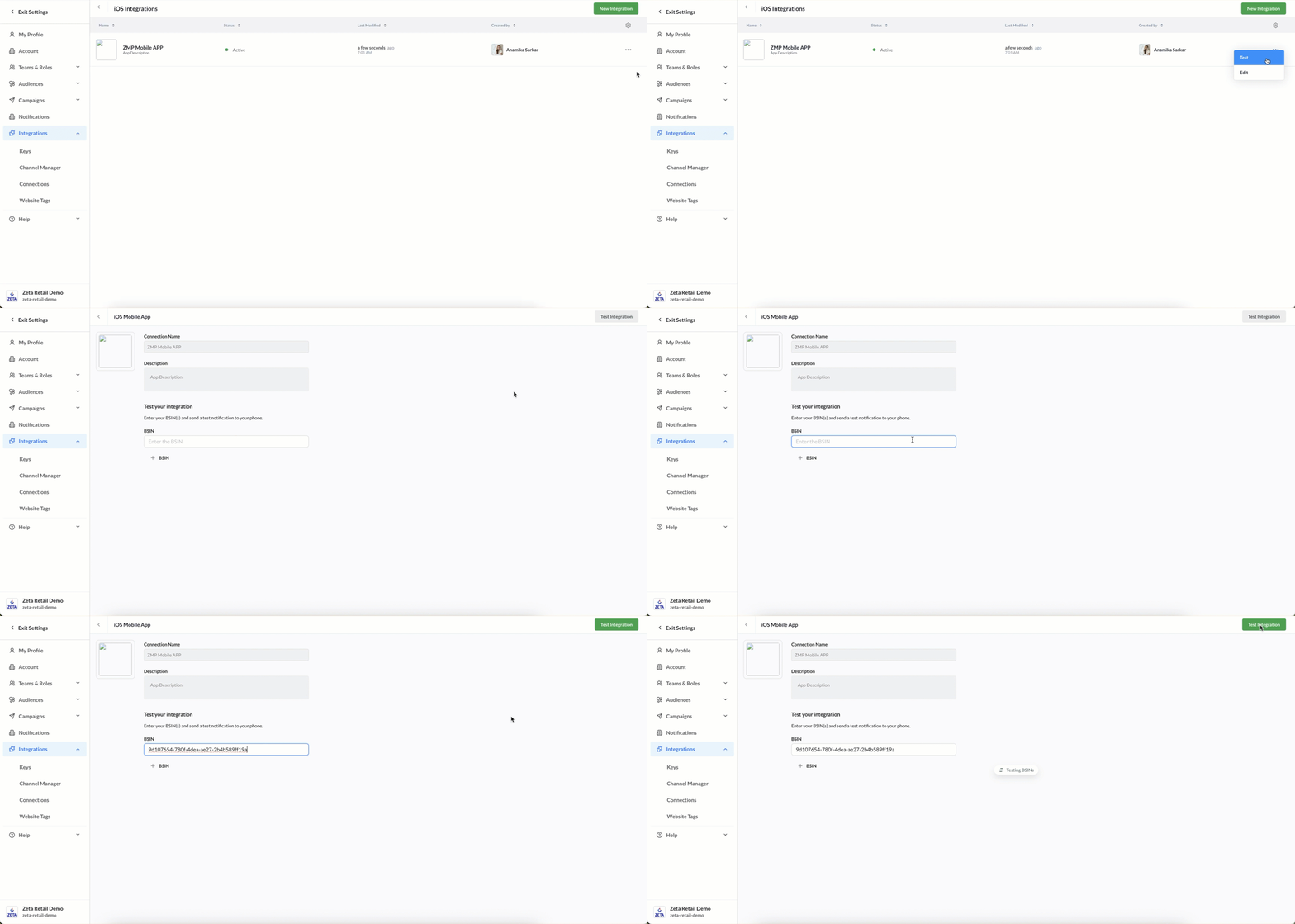
ZMP will attempt to send a test push notification to the specified user. If the notification does not arrive, verify that:
- The
env_typematches your build type (sandbox vs production). - The device token is registered in the user's contact profile.
- Push notification permission has been granted on the device.
For additional troubleshooting, see the Developer Guides:
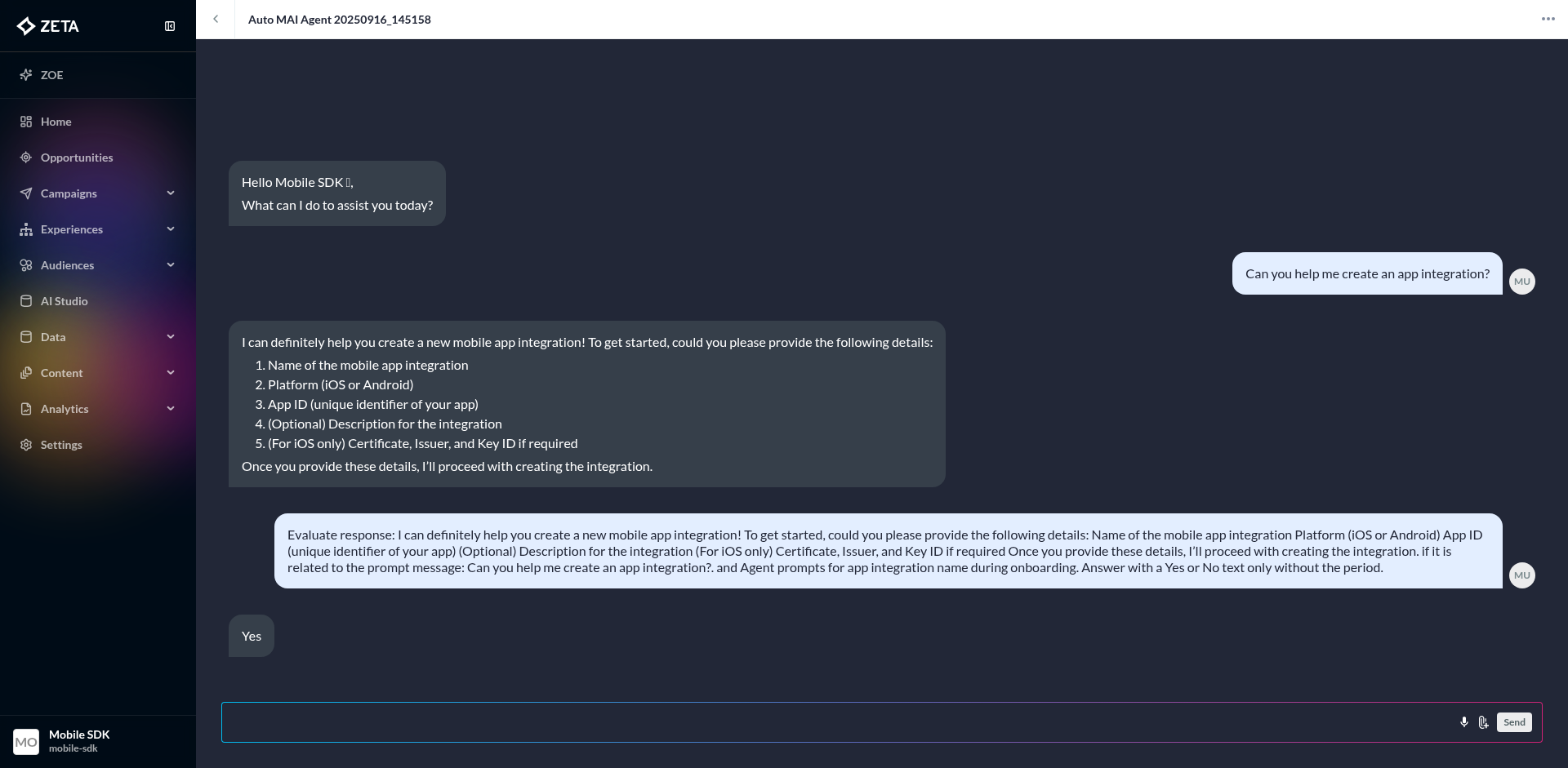
Conversational assistant
ZMP also provides an AI-powered conversational assistant to guide you through the registration process. The assistant walks you through required and optional fields one step at a time, validates your inputs in real time, and flags any configuration issues before you save.
Look for the assistant prompt when you open the app registration form.
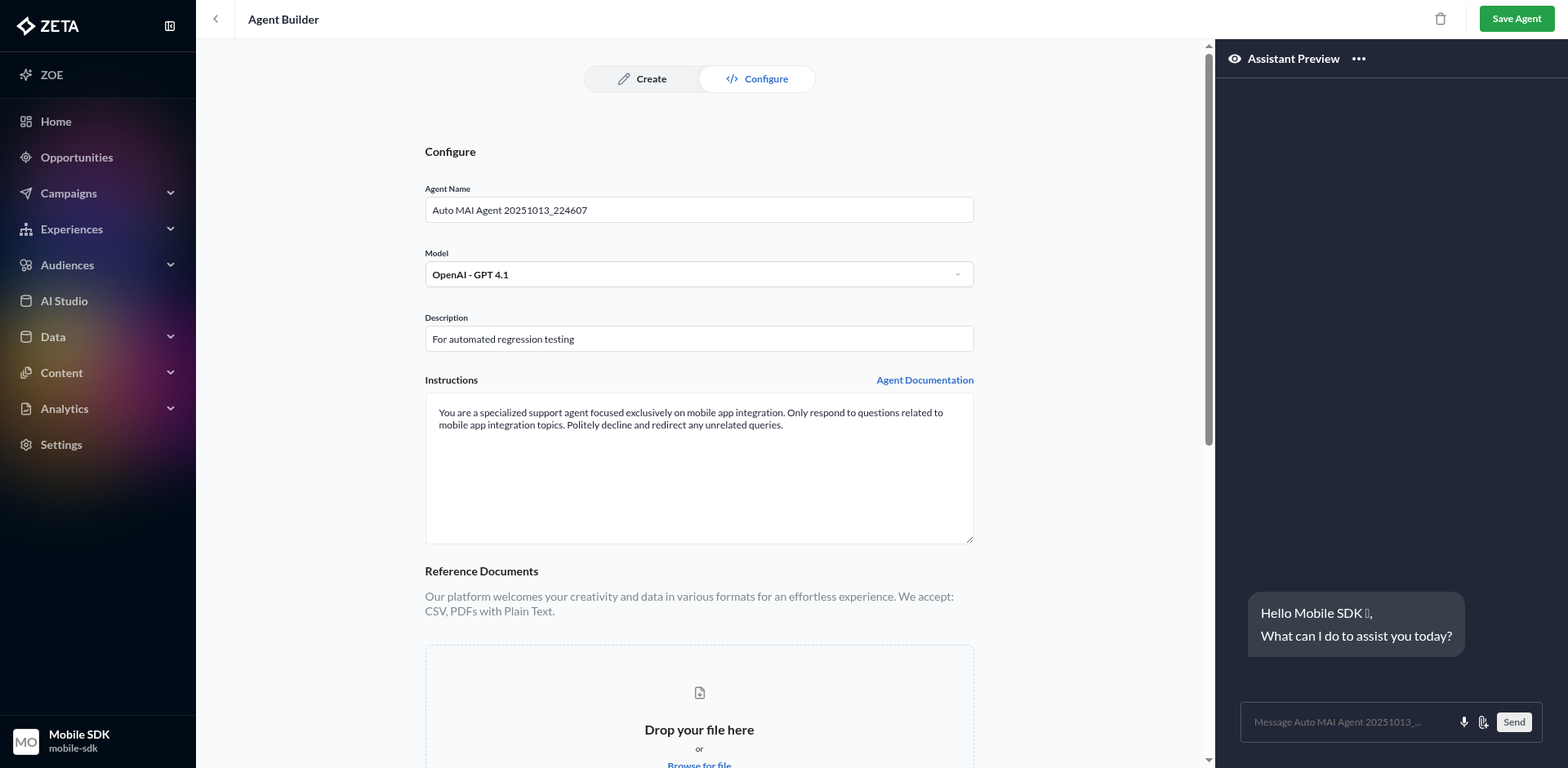
Here's an example of the conversation:
See also
- Push notifications: create a push campaign.
- Developer Guide: SDK integration instructions for iOS, Android, React Native, and Flutter.
Updated 4 months ago