

App inbox
How to use app inbox in the Zeta Marketing Platform (ZMP).
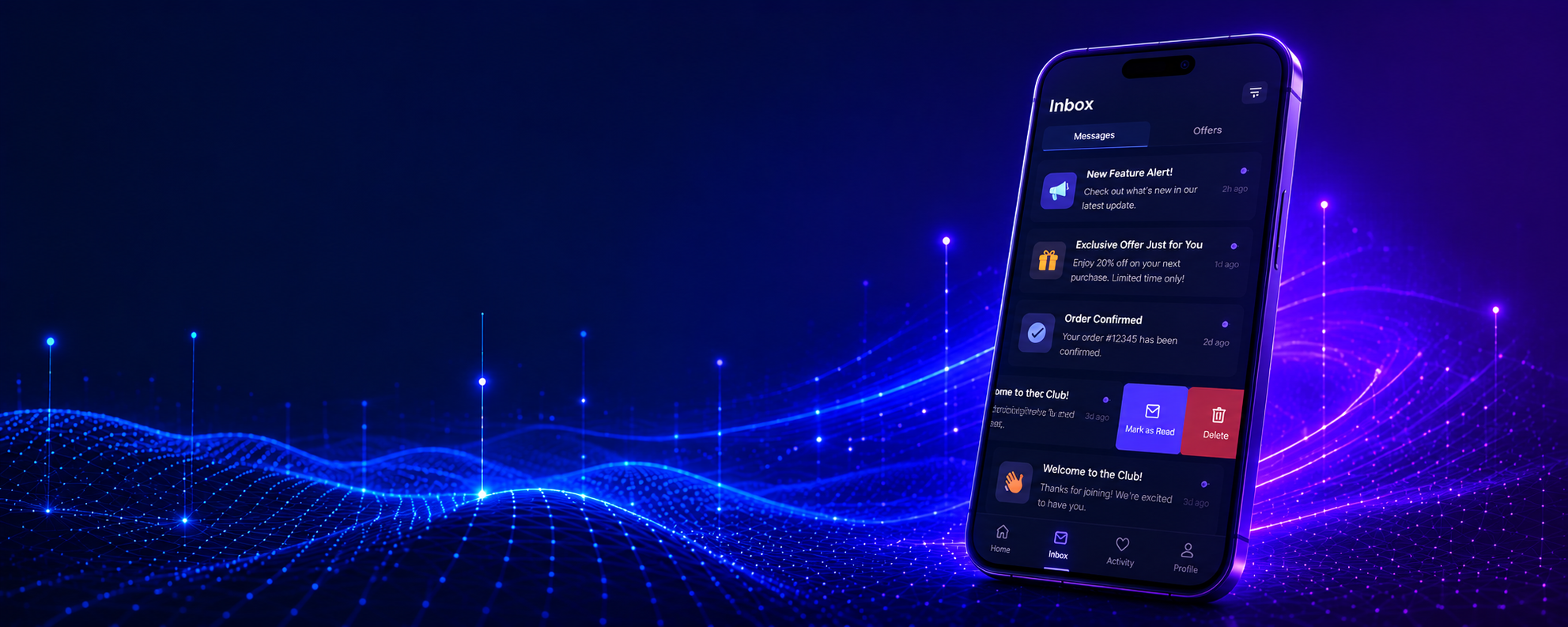
This guide covers creating app inbox campaigns in ZMP — from composing messages and targeting the right audience, to understanding the message lifecycle and monitoring engagement.
On this page
- What you can do with app inbox
- How inbox messages reach the user
- Choosing a campaign type
- Composing the message
- Message lifecycle
- CTA buttons
- Audience targeting
- Monitoring delivery
What you can do with app inbox
App inbox is a persistent message store inside your app, similar to a notification center. Users can browse, read, and revisit messages at their convenience. Unlike push notifications (which are transient) and in-app messages (which appear once), inbox messages persist until the user reads, deletes them, or the message expires.
- Stay visible after push — inbox messages persist even when a user dismisses a push notification or has opted out of push entirely. App inbox gives those users another path to your content.
- Promotions that stay relevant — offers, discounts, and deals users can revisit over days or weeks, rather than disappearing after a single view.
- Product updates and announcements — content worth keeping accessible long after the initial delivery.
- Rich content with multiple CTAs — messages can include images and multiple call-to-action buttons, giving users specific actions to take at their own pace.
Here is how app inbox compares to the other mobile channels:
| Attribute | Push notifications | In-app messages | App inbox |
|---|---|---|---|
| Persistence | OS-managed, transient | Single display, then dismissed | Persistent until read, deleted, or expired |
| Requires notification permission | Yes | No | No |
| User can revisit the message | Only if still in OS notification center | No | Yes |
| Supports CTA buttons | Limited (action buttons) | Single tap action | Multiple CTA buttons per message |
| Suitable for time-sensitive content | Yes | Yes | Moderately (messages stay visible but are not push-delivered) |
How inbox messages reach the user
- You create a campaign in ZMP with the inbox message content.
- When the campaign activates, ZMP queues the message for delivery.
- The next time the user opens your app, the SDK fetches new inbox messages from ZMP.
- Messages are stored locally on the device by the SDK.
- Your app's inbox UI (built by your development team) displays the messages. The SDK also exposes an unread message count that your development team can use to badge the inbox entry point — for example, a tab or icon that shows how many unread messages are waiting.
Delivery timing: Inbox messages are not pushed to the device in real time like push notifications — they are fetched by the SDK the next time the app opens. There is an inherent delay between campaign activation and message visibility that equals the time until the user's next app launch. If your content is time-sensitive, combine an app inbox message with a push notification so users receive an immediate alert alongside the persistent inbox copy.
Choosing a campaign type
ZMP supports two ways to send app inbox messages. Choose based on whether you want a one-time send or an automated send as part of a multi-channel journey.
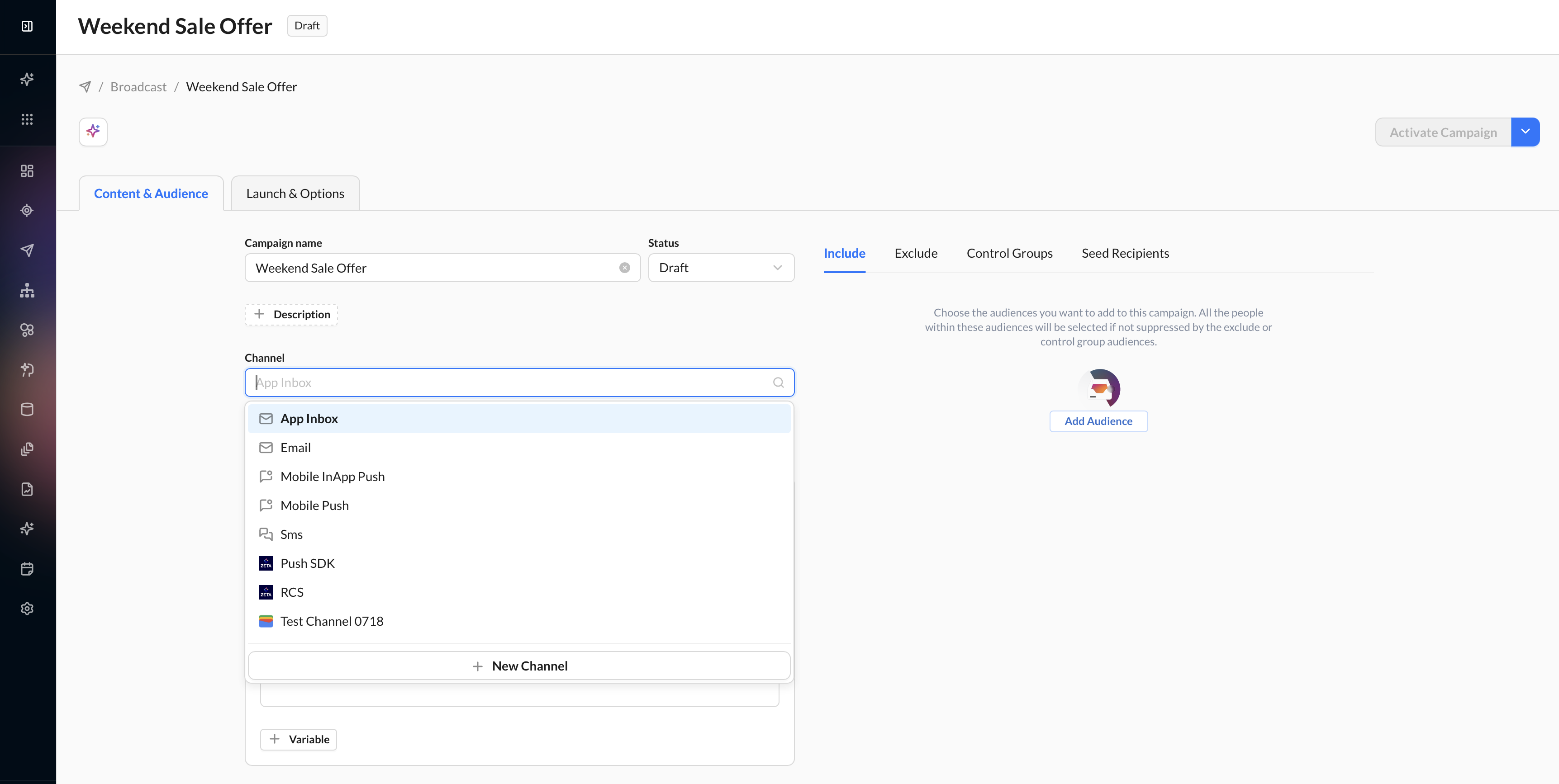
Broadcast Campaign
Send a single inbox message to an audience segment, either immediately or at a scheduled time. Best for promotions, product announcements, and content with a defined relevance window.
- Navigate to Campaigns > Broadcast from the left-hand menu.
- Click Create Campaign. Enter a campaign name and click Next.
- Within the Content & Audience tab, choose App Inbox from the channel dropdown.
See Broadcast Campaigns in the Zeta knowledgebase.
Triggered Campaign
Deliver inbox messages as part of an event-triggered, multi-channel journey — for example, following a push notification with an inbox message that stays accessible if the user dismisses the push. Triggered campaigns are configured using Experience Builder.
- Navigate to Experiences > Builder from the left-hand menu.
- Click New Experience to create a new triggered journey.
- Add an App Inbox step to your journey and configure the trigger.
See Experience Builder in the Zeta knowledgebase.
Note: Inbox messages are fetched by the SDK when the user opens the app, not delivered by the operating system. A user who is eligible for an active campaign will see the message the next time they launch the app.
Composing the message
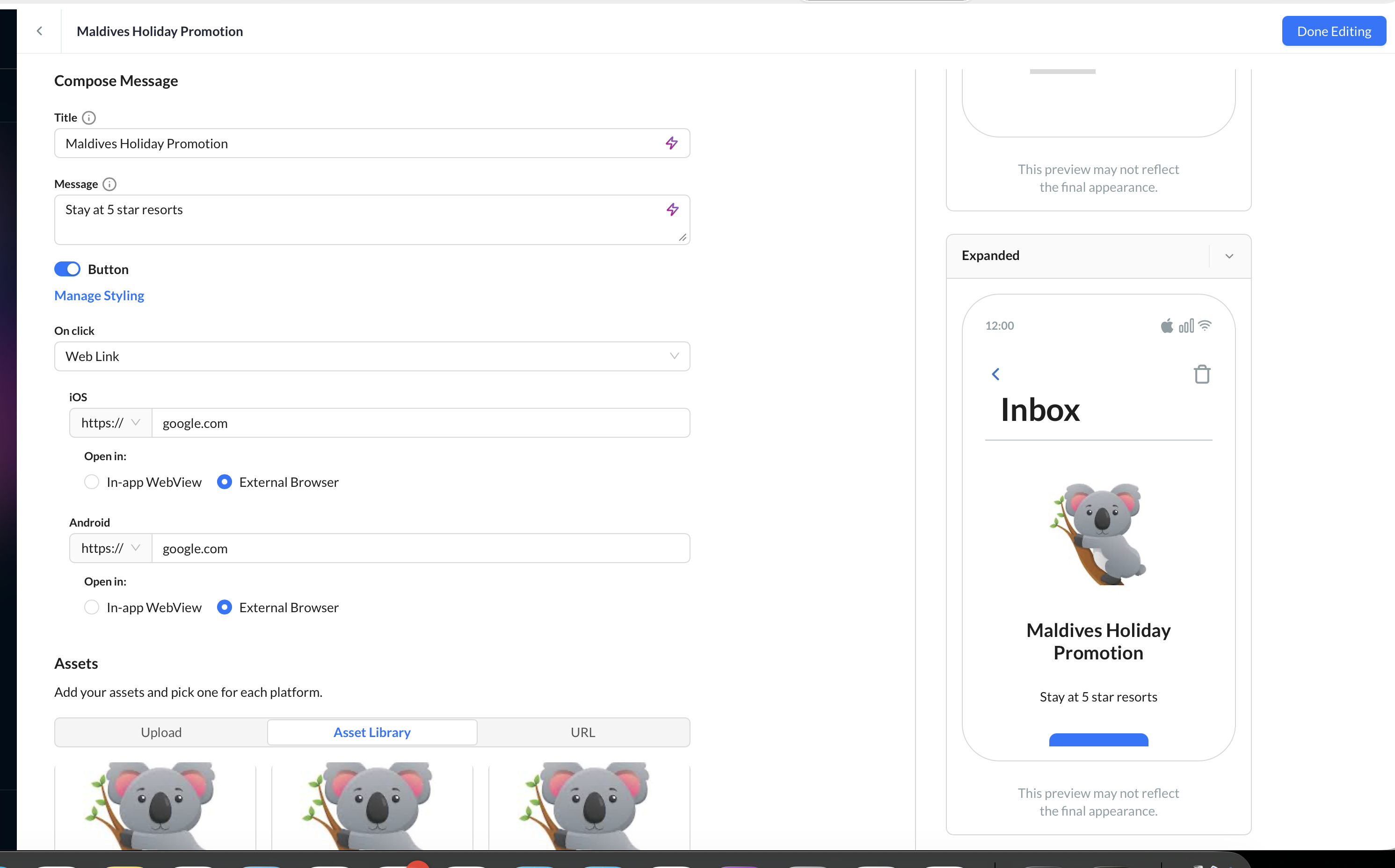
In the campaign editor, configure the inbox message content:
- Title: the headline shown in the user's inbox list.
- Body: the main message content.
- Image (optional): a media URL displayed with the message.
- On-tap action: choose what happens when the user taps the message body:
- Deep link — opens a specific screen in your app.
- Web link (in-app web view) — opens a URL inside the app using the device's built-in browser.
- Web link (external browser) — opens the URL in the device's default browser.
- CTA buttons (optional): one or more call-to-action buttons. See CTA buttons below.
- Additional data (optional): custom key-value pairs your app can use for display or routing logic.
Message lifecycle
Each inbox message moves through a series of states on the device:
| Status | Description |
|---|---|
| Unread | The message has been delivered to the device but the user has not opened it. |
| Read | The user has viewed the message (your app marks it as read via the SDK). |
| Deleted | The user has removed the message from their inbox (your app marks it as deleted via the SDK). |
| Expired | The message has passed its expiration timestamp and is no longer displayed. |
Key points about the lifecycle:
- Marking as read or deleted is handled by your app's code through the SDK. ZMP does not automatically mark messages as read.
- Expiration is set at the campaign level when you create the message. After the expiration timestamp, the SDK excludes the message from query results.
- Deleted messages are excluded from all future queries. This action is not reversible.
- Your development team can also clear all messages from the inbox using the SDK.
CTA buttons
Inbox messages can include one or more call-to-action (CTA) buttons. Each button has:
| Property | Description |
|---|---|
| Label | The text displayed on the button (for example, "Shop now" or "Learn more"). |
| Link | A URL (web link or deep link) that opens when the user taps the button. |
| Value | An action identifier used by your app for custom behavior. |
When a user taps a CTA button, the SDK records a click event and sends it to ZMP. Your app is responsible for handling the link or action value (opening a web page, navigating to an app screen, etc.).
Note: CTA button behavior depends on how your development team implements the inbox UI. The SDK provides the data. Your app provides the display and interaction handling.
Audience targeting
Define who receives the inbox message:
- Select a segment. Choose an audience segment or create a new one. See Audience segmentation.
- All app users: target all users with the SDK installed.
- Exclude segments (optional): remove specific user groups.
No notification permission is required to deliver inbox messages. Any user with the app installed and the SDK active can receive them.
Monitoring delivery
Track inbox message performance in the campaign report:
| Metric | Description |
|---|---|
| Delivered | Number of messages fetched by devices. |
| Read | Number of messages marked as read. |
| Clicked | Number of CTA button taps recorded. |
| Deleted | Number of messages the user removed from their inbox. |
For more on campaign metrics, see Campaign reporting.
See also
- Push notifications: re-engagement through OS-delivered notifications.
- In-app messaging: contextual messages for active users.
- App Inbox (iOS Developer Guide): SDK integration details.
- App Inbox (Android Developer Guide): SDK integration details.
Updated 4 months ago