

Push Notifications
Firebase Cloud Messaging integration, notification configuration, deep linking, action callbacks, and notification types.
This guide covers registering for push, configuring notification appearance, handling deep links, tracking events, and integrating with a custom FirebaseMessagingService.
On this page
- Push lifecycle
- Prerequisites
- Request notification permission
- Register the push service
- Configure notification appearance
- Track notification click
- Handle deep links
- Handle action callbacks
- Use a custom push service
- Re-register the token after app updates
- How delivery tracking works
- Filter Zeta and non-Zeta notifications
- Notification types
- FAQ
Push lifecycle
The SDK participates in three push events. Each is generated at a different layer.
| Event | When it fires | Generated by |
|---|---|---|
sent | ZMP dispatches the send request to FCM | ZMP (server-side) |
delivered | SDK confirms the notification was received | Mobile SDK (device-side) |
message_clicked | User taps the notification | Mobile SDK (device-side) |
delivered and message_clicked require the SDK to be running and correctly integrated. sent is always present because it is server-side.
A message_clicked event can exist without a corresponding delivered event — a tap conclusively proves the notification reached the device even if the delivery receipt was not generated.
Note:
deliveredis tracked automatically whenZTPushServiceorZTPush.handleMessage()processes the incoming message. If your app uses a custom push service and does not forward messages to the SDK, delivery events will not be generated.
Prerequisites
Push notifications require Firebase Cloud Messaging. Before configuring push:
- Add Firebase to your Android project — follow the Firebase setup guide.
- Add the
google-services.jsonfile to your app module. - Add the Firebase Messaging dependency:
// build.gradle.kts
dependencies {
    implementation("net.zetaglobal.app:core:1.0.1")
    implementation("com.google.firebase:firebase-messaging:24.1.0")
}// build.gradle
dependencies {
implementation 'net.zetaglobal.app:core:1.0.1'
implementation 'com.google.firebase:firebase-messaging:24.1.0'
}Note: Firebase Messaging requires Google Play Services on the device. Push notifications are unavailable on devices without Play Services (for example, certain Huawei devices).
Request notification permission
Starting with Android 13 (API 33), apps must request the POST_NOTIFICATIONS runtime permission before showing notifications. The SDK declares this permission in its manifest, but your app must request it from the user at an appropriate time.
Best practice: show a rationale screen first. Android's
shouldShowRequestPermissionRationale()tells you when the user has previously declined. Regardless, showing your own in-app screen before the OS dialog — explaining the value of notifications (e.g., order updates, personalized offers) — is the single most effective way to improve opt-in rates. The OS dialog can only be shown a limited number of times; once the user selects "Don't Allow", your app can no longer prompt them directly.
import android.Manifest
import android.os.Build
import androidx.activity.result.contract.ActivityResultContracts

private val requestPermissionLauncher =
    registerForActivityResult(ActivityResultContracts.RequestPermission()) { isGranted ->
        if (isGranted) {
            // Permission granted — notifications will display normally
        } else {
            // Permission denied — notifications are silently suppressed
        }
    }

// Call this after your custom rationale screen has been acknowledged.
fun requestNotificationPermission() {
    if (Build.VERSION.SDK_INT >= Build.VERSION_CODES.TIRAMISU) {
        requestPermissionLauncher.launch(Manifest.permission.POST_NOTIFICATIONS)
    }
}import android.Manifest;
import android.os.Build;
import androidx.activity.result.ActivityResultLauncher;
import androidx.activity.result.contract.ActivityResultContracts;
private final ActivityResultLauncher<String> requestPermissionLauncher =
registerForActivityResult(new ActivityResultContracts.RequestPermission(), isGranted -> {
if (isGranted) {
// Permission granted — notifications will display normally
} else {
// Permission denied — notifications are silently suppressed
}
});
public void requestNotificationPermission() {
if (Build.VERSION.SDK_INT >= Build.VERSION_CODES.TIRAMISU) {
requestPermissionLauncher.launch(Manifest.permission.POST_NOTIFICATIONS);
}
}Note: On Android 12 and below, notification permission is granted by default. The
POST_NOTIFICATIONSpermission request is a no-op on those versions.
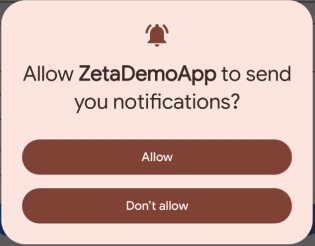
Android 13 runtime notification permission dialog on a physical device
Register the push service
The SDK's AAR manifest already declares ZTPushService as a Firebase Messaging service with priority="-1":
<service
    android:name="net.zetaglobal.app.zetacore.push.ZTPushService"
    android:exported="false"
    tools:node="merge">
    <intent-filter>
        <action android:name="com.google.firebase.MESSAGING_EVENT" />
    </intent-filter>
    <meta-data
        android:name="com.google.firebase.messaging.default_notification_channel_id"
        android:value="@string/default_notification_channel_id" />
</service>
Manifest merge handles this automatically. You do not need to re-declare ZTPushService in your app manifest unless you are using a custom push service.
The priority="-1" ensures that if your app declares its own FirebaseMessagingService, it takes precedence over the SDK's built-in service.
Configure notification appearance
Configure push notification behavior by calling ZTPush.initConfig() after SDK initialization.
import net.zetaglobal.app.zetacore.push.ZTPush
import net.zetaglobal.app.zetacore.push.ZTNotificationConfig
import net.zetaglobal.app.zetacore.push.ZTNotificationChannel

val notificationConfig = ZTNotificationConfig(
    smallIcon = R.drawable.ic_notification,
    color = ContextCompat.getColor(this, R.color.notification_accent),
    notificationChannel = ZTNotificationChannel(
        id = "zeta_channel",
        name = "Zeta Notifications",
        description = "Notifications from Zeta SDK"
    )
)

ZTPush.initConfig(notificationConfig)import net.zetaglobal.app.zetacore.push.ZTPush;
import net.zetaglobal.app.zetacore.push.ZTNotificationConfig;
import net.zetaglobal.app.zetacore.push.ZTNotificationChannel;
ZTNotificationChannel channel = new ZTNotificationChannel(
"zeta_channel",
"Zeta Notifications",
"Notifications from Zeta SDK"
);
ZTNotificationConfig notificationConfig = new ZTNotificationConfig(
R.drawable.ic_notification,
ContextCompat.getColor(this, R.color.notification_accent),
true, // enableAppLaunch
channel
);
ZTPush.INSTANCE.initConfig(notificationConfig);ZTNotificationConfig parameters
ZTNotificationConfig parameters| Parameter | Required | Description |
|---|---|---|
smallIcon | Optional | Drawable resource ID (@DrawableRes Int) for the notification small icon. Defaults to the app icon. |
color | Optional | Accent color as @ColorInt Int. Use ContextCompat.getColor() or Color.GREEN, etc. |
enableAppLaunch | Optional | Whether the SDK launches the app when the user taps a notification that has no explicit action. Defaults to true. |
notificationChannel | Required | A ZTNotificationChannel instance defining the notification channel. |
ZTNotificationChannel parameters
ZTNotificationChannel parameters| Parameter | Required | Description |
|---|---|---|
id | Required | Unique identifier for the notification channel. |
name | Required | User-visible name displayed in system notification settings. |
description | Required | User-visible description for the channel. |
showBadge | Optional | Show a badge icon for this channel. Defaults to true. |
autoCancel | Optional | Automatically dismiss the notification when the user taps it. Defaults to true. |
notificationSound | Optional | Raw resource ID (@RawRes Int) for a custom notification sound. Defaults to the system sound. |
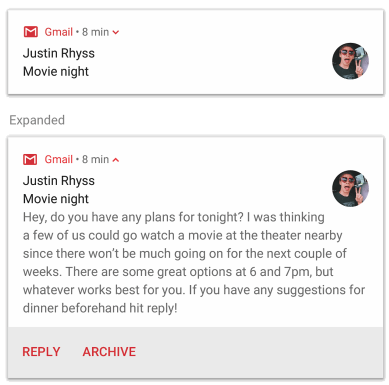
Android notification shade showing a Zeta push notification with the custom small icon and accent color applied
Track notification clicks
When a user taps a Zeta push notification, the payload is delivered to your launch activity via its Intent. Retrieve it and forward it to the SDK in both of the following lifecycle callbacks so clicks are tracked regardless of the activity's current state:
onCreate(...)— called when the activity is launched from a cold start by the notification tap (the app process was not running, or the activity was not in the task backstack).onNewIntent(...)— called when the activity is already running (typically declared withlaunchMode="singleTop"or"singleTask") and is re-delivered the notification intent without being recreated.
Use ZTPush.getNotificationInfo(intent) to extract the payload, then:
ZTPush.trackEvent(...)records the notification click event with Zeta.ZTPush.removeNotification(...)dismisses the notification from the system tray.
Kotlin
val notificationInfo = ZTPush.getNotificationInfo(intent)
notificationInfo?.let {
    ZTPush.trackEvent(it)
    ZTPush.removeNotification(applicationContext, it.localNotificationId)
}ZTNotificationInfo notificationInfo = ZTPush.INSTANCE.getNotificationInfo(getIntent());
if (notificationInfo != null) {
ZTPush.INSTANCE.trackEvent(notificationInfo);
// The third argument is the optional notification tag; pass null if the
// notification was posted without one.
ZTPush.INSTANCE.removeNotification(
getApplicationContext(),
notificationInfo.getLocalNotificationId(),
null
);
}Handle deep links
When a Zeta notification carries a deep link, the SDK delivers it through ZTPush.getNotificationInfo(). You need to handle it in two places:
onCreate— when the activity is launched fresh from a tapped notification (app was not running or task was not in the backstack).onNewIntent— when the activity is already running (e.g.,launchMode="singleTop"orsingleTask) and receives the notification intent without being recreated.
override fun onCreate(savedInstanceState: Bundle?) {
    super.onCreate(savedInstanceState)
    handleNotificationIntent(intent)
}

override fun onNewIntent(intent: Intent) {
    super.onNewIntent(intent)
    setIntent(intent) // update the activity's intent so getIntent() returns the new one
    handleNotificationIntent(intent)
}

private fun handleNotificationIntent(intent: Intent) {
    val notificationInfo = ZTPush.getNotificationInfo(intent) ?: return
    val deepLink = notificationInfo.deepLink
    val extra = notificationInfo.extra
    // Navigate to the target screen
}@Override
protected void onCreate(Bundle savedInstanceState) {
super.onCreate(savedInstanceState);
handleNotificationIntent(getIntent());
}
@Override
protected void onNewIntent(Intent intent) {
super.onNewIntent(intent);
setIntent(intent); // update the activity's intent so getIntent() returns the new one
handleNotificationIntent(intent);
}
private void handleNotificationIntent(Intent intent) {
ZTNotificationInfo notificationInfo = ZTPush.INSTANCE.getNotificationInfo(intent);
if (notificationInfo == null) return;
String deepLink = notificationInfo.getDeepLink();
String extra = notificationInfo.getExtra();
// Navigate to the target screen
}Note: Always call
setIntent(intent)insideonNewIntentbefore processing. Without it, a subsequent call togetIntent()elsewhere in the activity returns the original launch intent, not the notification intent.
Intent filter setup
Add an intent filter to your launch activity to handle deep links:
<activity android:name=".MainActivity">
    <intent-filter>
        <action android:name="android.intent.action.VIEW" />
        <category android:name="android.intent.category.DEFAULT" />
        <category android:name="android.intent.category.BROWSABLE" />
        <data android:scheme="yourapp" android:host="deeplink" />
    </intent-filter>
</activity>
Handle action callbacks
The SDK provides callbacks for notification actions in the foreground and background.
Background action callback
When a user taps an action button while the app is in the background, the SDK fires the callback and automatically creates the tracking event:
ZTPush.setActionBackgroundCallback { notificationInfo ->
    val deepLink = notificationInfo.deepLink
    val extra = notificationInfo.extra
}ZTPush.INSTANCE.setActionBackgroundCallback(notificationInfo -> {
String deepLink = notificationInfo.getDeepLink();
String extra = notificationInfo.getExtra();
});For foreground taps, retrieve the notification info from the activity intent and track manually. See Handle deep links.
Use a custom push service
If your app already has a FirebaseMessagingService, forward messages and token updates to the SDK:
class MyFirebaseMessagingService : FirebaseMessagingService() {

    override fun onNewToken(token: String) {
        super.onNewToken(token)
        ZetaClient.updatePushToken(applicationContext, token)
    }

    override fun onMessageReceived(remoteMessage: RemoteMessage) {
        super.onMessageReceived(remoteMessage)
        if (ZTPush.handleMessage(this, remoteMessage)) {
            return // Zeta handled this message
        }
        // Handle your own messages
    }
}public class MyFirebaseMessagingService extends FirebaseMessagingService {
@Override
public void onNewToken(@NonNull String token) {
super.onNewToken(token);
ZetaClient.INSTANCE.updatePushToken(getApplicationContext(), token);
}
@Override
public void onMessageReceived(@NonNull RemoteMessage remoteMessage) {
super.onMessageReceived(remoteMessage);
if (ZTPush.INSTANCE.handleMessage(this, remoteMessage)) {
return; // Zeta handled this message
}
// Handle your own messages
}
}If you receive push data as a Map<String, String> instead of a RemoteMessage (for example, from a third-party push wrapper), use handleMessageMap:
val handled = ZTPush.handleMessageMap(context, data)
// smallIcon is optional — defaults to the app icon or the icon set in ZTNotificationConfigboolean handled = ZTPush.INSTANCE.handleMessageMap(context, data, R.drawable.ic_notification);
// Java callers must pass all three parameters; smallIcon is requiredWhen using a custom push service, register it in your manifest instead of the SDK's built-in service:
<service
    android:name=".MyFirebaseMessagingService"
    android:exported="false">
    <intent-filter>
        <action android:name="com.google.firebase.MESSAGING_EVENT" />
    </intent-filter>
</service>
Re-register the token after app updates
When integrating the SDK into an existing Android application, pass the Firebase token to the SDK explicitly using updatePushToken().
FirebaseMessaging.getInstance().token.addOnSuccessListener { token ->
    ZetaClient.updatePushToken(applicationContext, token)
}FirebaseMessaging.getInstance().getToken().addOnSuccessListener(token -> {
ZetaClient.INSTANCE.updatePushToken(getApplicationContext(), token);
});How delivery tracking works
The SDK tracks notification delivery events automatically when it processes an incoming message via ZTPushService or ZTPush.handleMessage(). No additional configuration is required.
Filter Zeta and non-Zeta notifications
The SDK exposes callbacks that distinguish between Zeta and non-Zeta notifications. Register these in your Application.onCreate(), before ZTPush.initConfig():
ZTPush.setNonZtNotificationCallback { remoteMessage ->
    // This notification is not from Zeta — handle it yourself
}

ZTPush.setZtNotificationCallback { notificationInfo ->
    // This is a Zeta notification — SDK handles display automatically
}ZTPush.INSTANCE.setNonZtNotificationCallback(remoteMessage -> {
// This notification is not from Zeta — handle it yourself
});
ZTPush.INSTANCE.setZtNotificationCallback(notificationInfo -> {
// This is a Zeta notification — SDK handles display automatically
});Notification types
The SDK supports two notification layouts:
Text notification — title, body, and an optional action button.
Image notification — title, body, a large image, and an optional action button. The SDK downloads and caches the image automatically.
Both types support deep links and custom actions configured in the ZMP campaign.
Note: Keep image files under 2 MB — this is the limit enforced by Zeta. Images must be hosted on an external server and linked via an
https://URL in the notification payload. FCM rejects notification payloads exceeding 4 KB, so keep Additional Values and other payload fields concise.
FAQ
Why are delivery receipts missing for some notifications?
A missing delivered event does not mean the push failed to reach the device. Delivery receipts are device-side events generated by the SDK when it processes an incoming message. Receipts can be absent for any of the following reasons:
- App not forwarding messages to the SDK — if you use a custom
FirebaseMessagingServicewithout callingZTPush.handleMessage(), the SDK cannot generate delivery events. See Use a custom push service. - Device offline at send time — FCM queues messages for up to 28 days (or until the message's TTL expires) and delivers them when the device reconnects (Firebase: Understanding message delivery).
- Stale registration token — the token expires when the user uninstalls the app, clears app data, or restores from a backup. FCM returns an
UNREGISTEREDerror (Firebase: ErrorCode). - Per-device rate limiting — FCM throttles messages sent to the same device at a high rate. Excess messages are queued and delivered gradually (Firebase: Understanding message delivery).
- Notifications disabled — the user revoked notification permission (Android 13+) or disabled the app's notification channel in system settings.
- No Google Play Services — FCM requires Play Services. Devices without it (certain Huawei models, custom ROMs) cannot receive FCM messages.
The most reliable proof that a push was delivered is a message_clicked event — a click proves the notification reached the device and the user interacted with it.
Why is the push open rate always 0%?
Push notifications do not have an "opened" metric equivalent to email opens (pixel fire). The open rate for push campaigns is always 0% — this is expected behavior, not a bug. The meaningful engagement metric for push is message_clicked.
Where do Additional Values from the ZMP campaign builder go?
Additional Values (custom key-value pairs configured in the ZMP push campaign builder) are included in the push payload and passed through to your app via the SDK. They are a pass-through mechanism — your app is responsible for reading them and forwarding them to your own analytics pipeline.
Values are available in extraInfo from ZTPush.getNotificationInfo() and the notification callbacks. See Handle deep links and Handle action callbacks for code examples.
These values are not written back to ZMP reporting. If you need Additional Values to appear in your reporting pipeline, extract them in your tap handler and forward them to your analytics system.
What is the difference between "skipped" and "failed" sends?
| Status | Meaning |
|---|---|
| Skipped | The send was not attempted — typically due to provider throttling, rate limiting, or a pre-send validation. Skipped messages may be retried depending on campaign configuration. |
| Failed | The send was attempted and FCM returned an explicit error. |
A skipped message does not necessarily represent permanent delivery loss.
Next
- Push Troubleshooting — FCM error codes and common issues.
- Testing and QA — verify your push integration before release.
- In-App Messaging — foreground, opt-in-free messages.
- Contact Management — device identifiers and push token handoff.
- User Guide: Push Notifications — campaign setup and targeting from ZMP.
See also
- Platform support -- feature availability by platform and SDK version.
Updated 4 months ago