

ZetaNotificationService - Troubleshooting Guide
Rich push notifications and delivery tracking for iOS.
Before You Start
You need:
- Xcode 16.0+ with a Swift 5.4+ toolchain
- A paid Apple Developer account (push notifications and App Groups require one)
- An app that already targets iOS 13.0 or later
- Push notifications enabled on your main app target
This guide assumes your backend is already configured to send notifications through Zeta.
If notifications are not arriving at all, start with Troubleshooting -> Nothing arrives on device before continuing here.
1. Add a Notification Service Extension
Open your project in Xcode and go to File > New > Target. Pick iOS > Notification Service Extension.
- Product Name:
NotificationService(or whatever you prefer) - Bundle Identifier:
com.yourcompany.yourapp.notificationservice
(must be a child of your main app's bundle ID) - Include UI Extension: leave unchecked
When Xcode asks to activate the new scheme, tap Cancel so your main app stays active.
Set the extension's iOS Deployment Target to 13.0 (or match your main app if higher).
2. Install the SDK
Swift Package Manager (recommended)
- File > Add Package Dependencies...
- Enter the ZetaKit package URL.
| Library | Target |
|---|---|
ZetaCore | Main app |
ZetaNotificationService | Main app & Notification Service Extension |
Add library products to the right targets:
- Add
ZetaNotificationServiceto main app and extension - Do not add
ZetaCoreto the extension
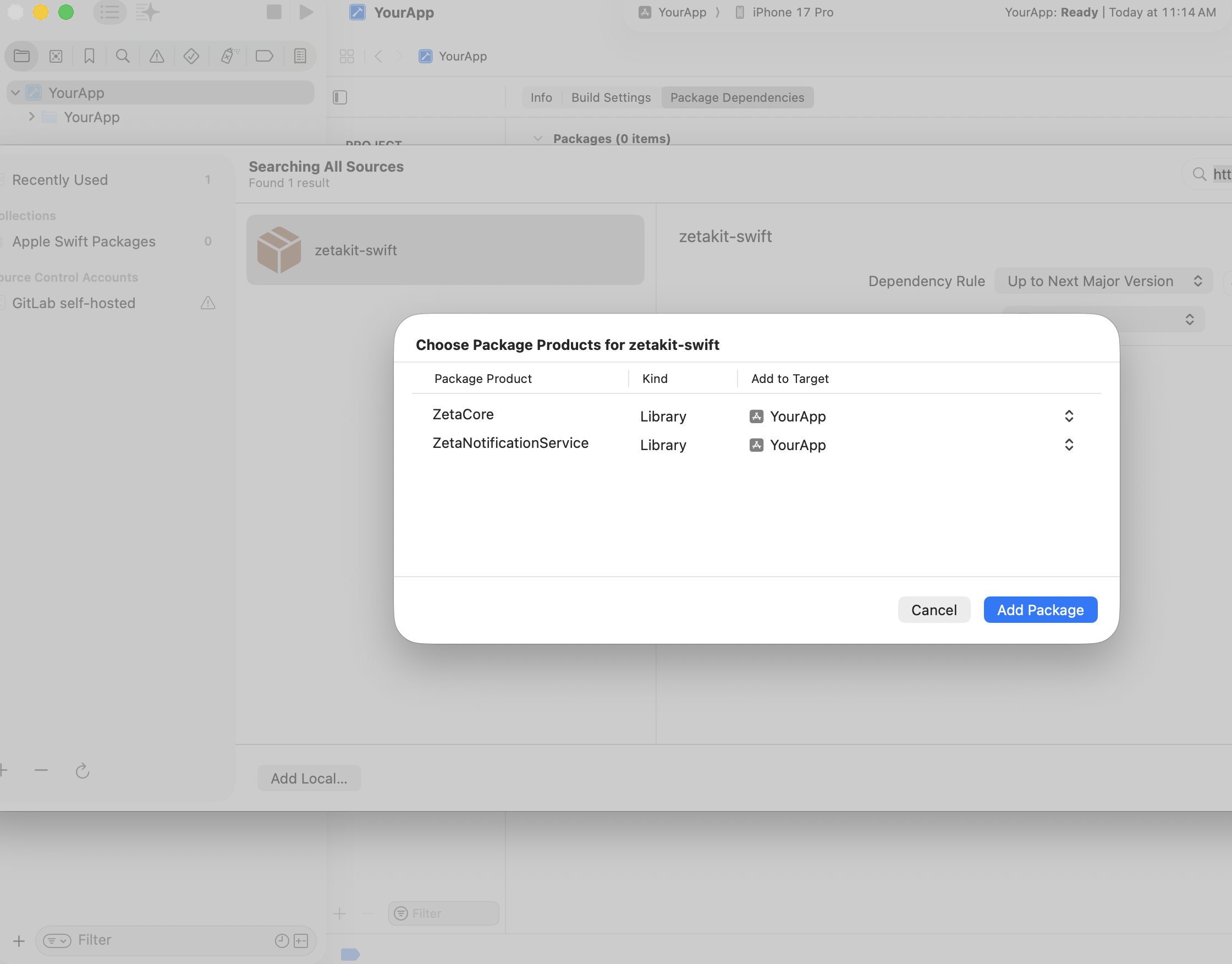
SPM target mapping — ZetaCore to main app, ZetaNotificationService to main app as well as extension
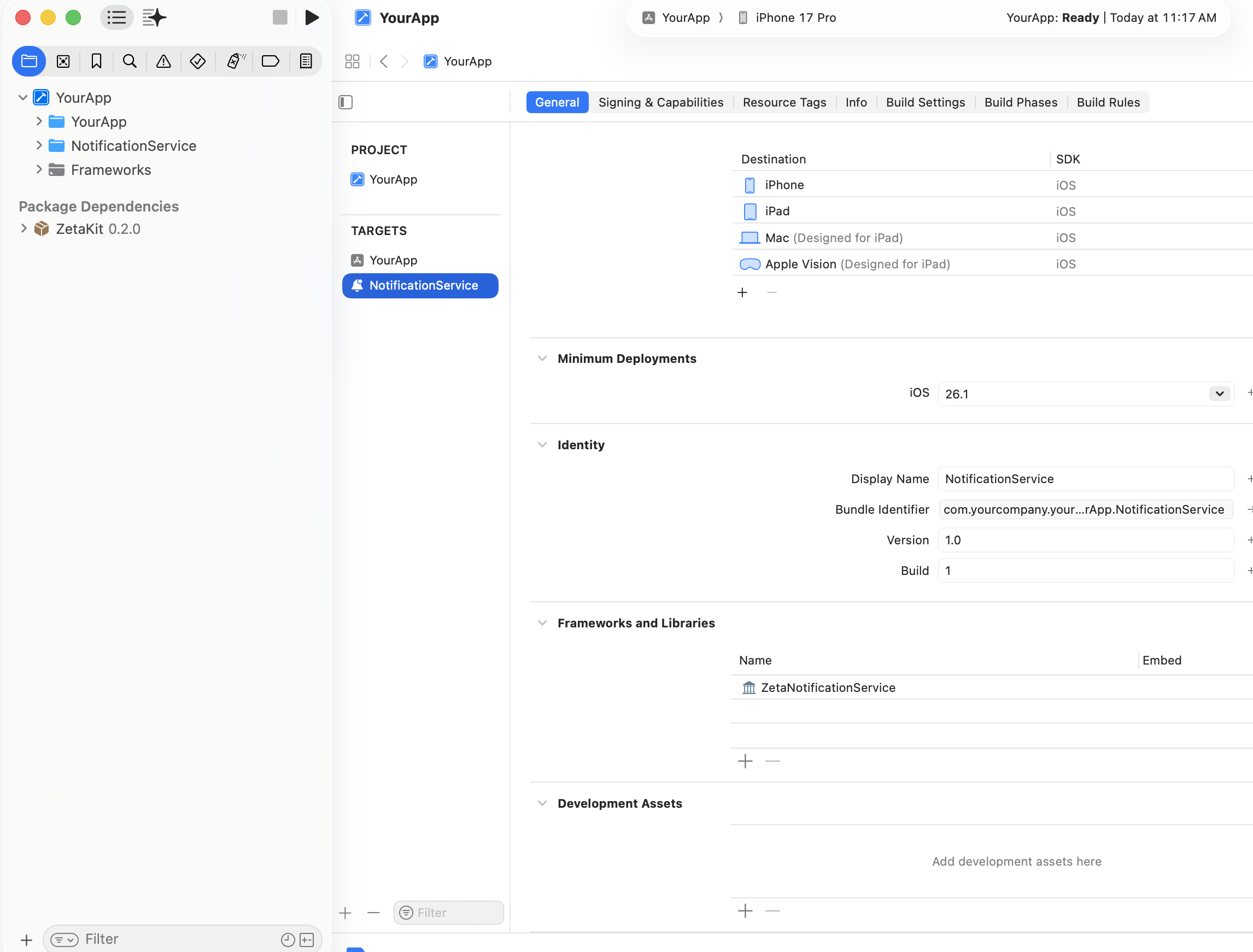
ZetaNotificationService in notification extension
XCFramework
Drop ZetaNotificationService.xcframework into your project. In the extension target's General > Frameworks, Libraries, and Embedded Content, add it and set Embed & Sign.
3. Set Up App Groups
Delivery tracking works by writing to a shared UserDefaults suite. The extension writes, ZetaCore in your main app reads. Both targets must use the same App Group.
In Apple Developer portal:
- Go to Certificates, Identifiers & Profiles > Identifiers > App Groups.
- Register a group, e.g.
group.com.yourcompany.yourapp. - Open the App ID for your main app. Enable Push Notifications and App Groups, then assign your group.
- Open (or create) the App ID for your extension. Enable App Groups and assign the same group.
- Regenerate your provisioning profiles for both targets. Xcode usually handles this automatically, but if you manage profiles manually, do it now.
In Xcode:
- select your Main app target > Signing & Capabilities. Add Push Notifications and App Groups, then select your group.
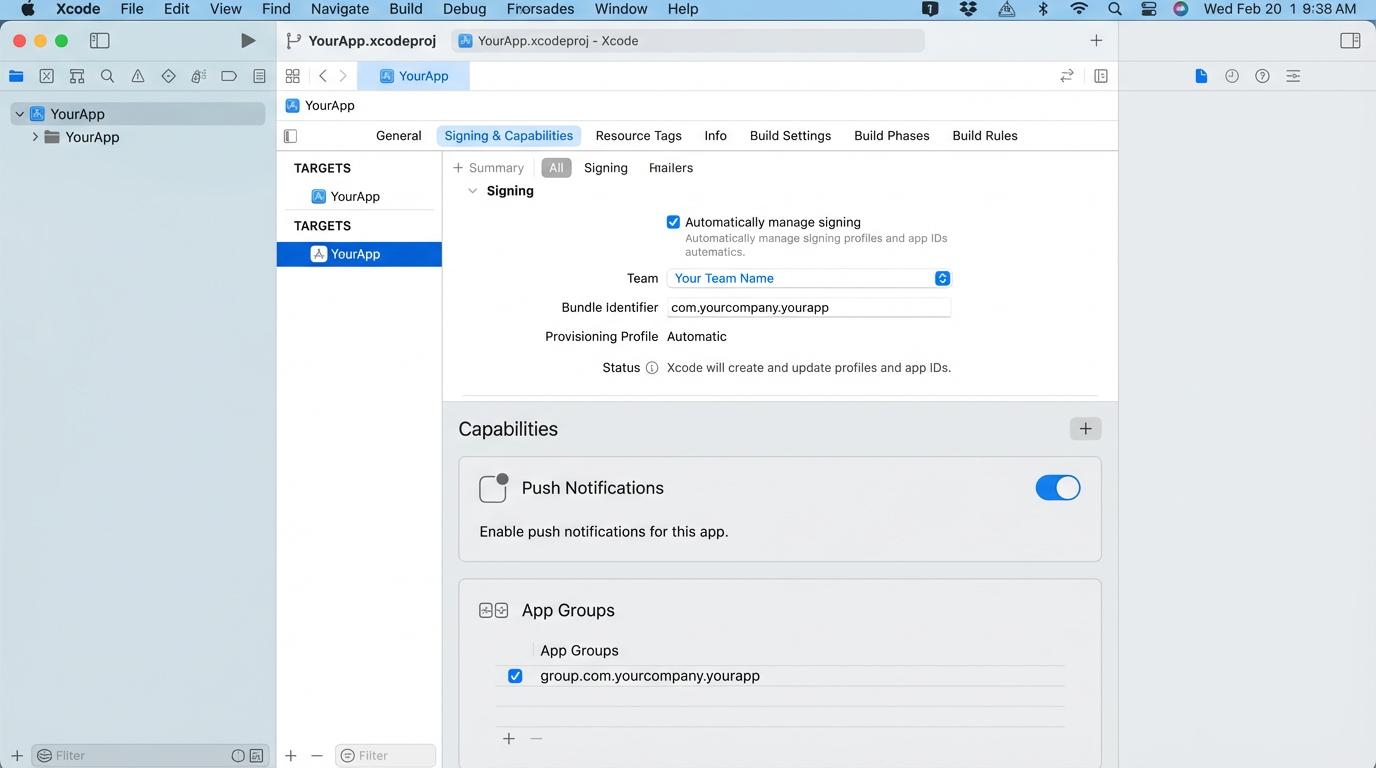
Main app capabilities — Push Notifications and App Groups enabled
- Select your extension target > Signing & Capabilities. Add App Groups and select the same group.
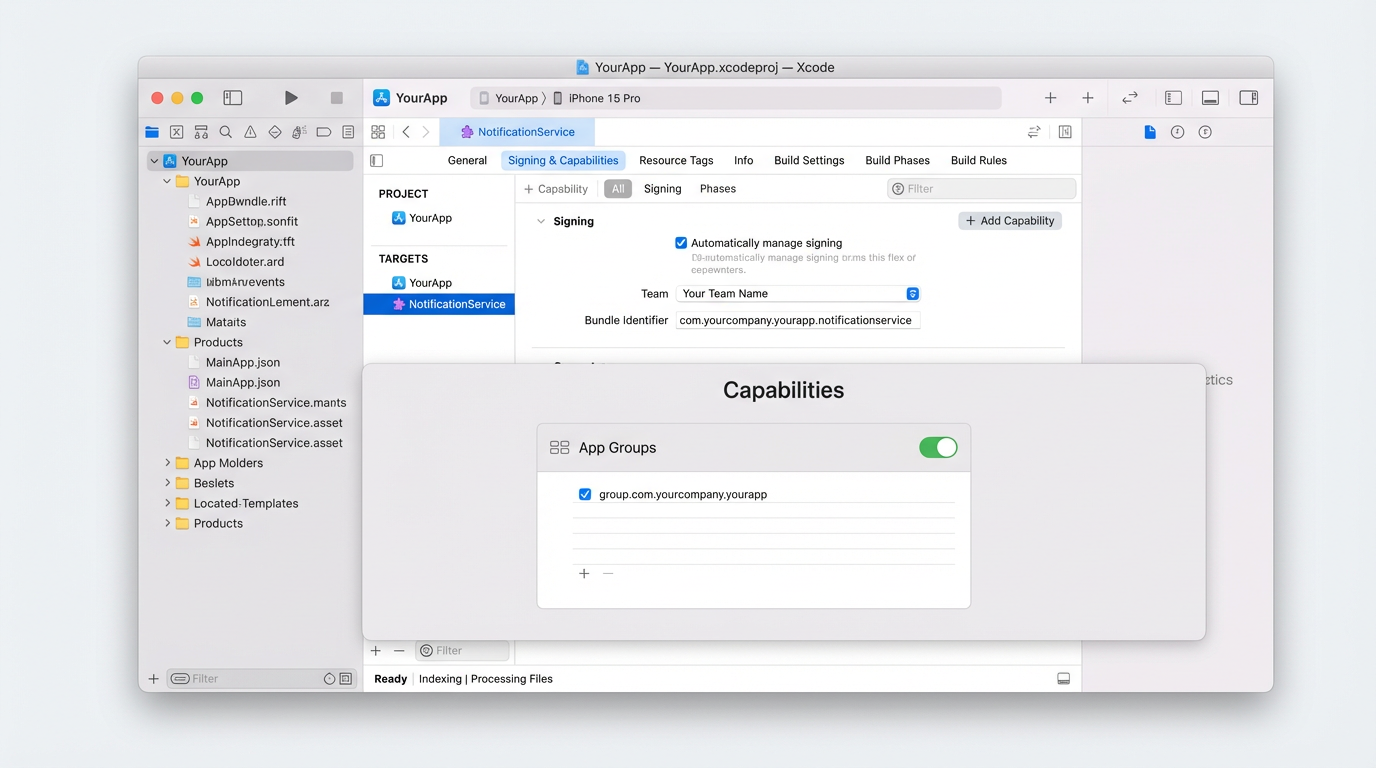
Extension capabilities — App Groups with the same group ID
The group identifier in code must match exactly, including group prefix. A Mismatch fails silently.
4. Implement the Extension
Pick one of two approaches depending on whether you handle notifications from other providers.
Option A: Subclass (fastest path)
If every push notification your app receives goes through Zeta, subclass ZTNotificationService directly
import ZetaNotificationService
import UserNotifications

class NotificationService: ZTNotificationService {
    // Rich media (images, video thumbnails) handled automatically.
    // No additional code required.
}
The base class downloads media, attaches it, and handles timeout gracefully. If the download takes too long, the notification is delivered without media — the user still sees the message.
Delivery tracking with the subclass approach: The subclass handles rich media but does not call trackNotificationDelivered automatically. If you need delivery analytics, override didReceive and add the tracking call before handing off to super:
class NotificationService: ZTNotificationService {
    override func didReceive(
        _ request: UNNotificationRequest,
        withContentHandler contentHandler: @escaping (UNNotificationContent) -> Void
    ) {
        ZTNotificationService.trackNotificationDelivered(
            request,
            appGroupId: "group.com.yourcompany.yourapp"
        )
        super.didReceive(request, withContentHandler: contentHandler)
    }
}
Option B: Selective handling (mixed providers)
If your app receives notifications from multiple sources, check whether Zeta should handle each one:
import ZetaNotificationService
import UserNotifications

class NotificationService: UNNotificationServiceExtension {

    override func didReceive(
        _ request: UNNotificationRequest,
        withContentHandler contentHandler: @escaping (UNNotificationContent) -> Void
    ) {
        if ZTNotificationService.canHandle(request) {
            ZTNotificationService.trackNotificationDelivered(
                request,
                appGroupId: "group.com.yourcompany.yourapp"
            )
            ZTNotificationService.handleNotification(
                request,
                withContentHandler: contentHandler
            )
            return
        }

        // Not a Zeta notification — handle it yourself or pass through.
        contentHandler(request.content)
    }

    override func serviceExtensionTimeWillExpire() {
        // The Zeta SDK manages its own timeout internally.
        // Add your own cleanup here if you handle non-Zeta notifications above.
    }
}
canHandle(_:) returns true when the payload contains a com.zmp.ios.data key in userInfo. Notifications without it pass through untouched.
5. Wire Up the Main App
In your AppDelegate (or wherever you handle push registration), make sure ZetaCore is initialized with the same App Group ID, and that you forward the device token:
import ZetaCore

func application(
    _ application: UIApplication,
    didFinishLaunchingWithOptions launchOptions: [UIApplication.LaunchOptionsKey: Any]?
) -> Bool {
    let config = ZTConfig(
        isLoggingEnabled: true,
        clientSiteId: "YOUR_SITE_ID",
        clientSecret: "YOUR_SECRET",
        region: .US,
        appGroupId: "group.com.yourcompany.yourapp",
        optIn: true,
        appEnvironment: .PRODUCTION  // Use .SANDBOX for debug builds — see below
    )

    ZetaClient.shared.initialize(config: config)
    UNUserNotificationCenter.current().requestAuthorization(options: [.alert, .badge, .sound]) { _, _ in }
  application.registerForRemoteNotifications()

    return true
}
func application(
    _ application: UIApplication,
    didRegisterForRemoteNotificationsWithDeviceToken deviceToken: Data
) {
    ZetaClient.shared.user?.updateDeviceToken(token: deviceToken)
}
The appGroupId in ZTConfig must match the one you pass to trackNotificationDelivered in the extension. If they don't match, the main app won't find the delivery records the extension wrote
6. Sandbox vs Production
APNs has two environments, and mixing them up is the single most common cause of "it works in debug but not TestFlight" (or vice versa).
The rules are straightforward:
- You run from Xcode (debug build): The device gets a sandbox token. Your backend must send to
api.sandbox.push.apple.com. - TestFlight, App Store, or Ad Hoc: The device gets a production token. Your backend must send to
api.push.apple.com.
You don't choose the environment in your app code — the OS decides based on how the app was built. What you do control is appEnvironment in ZTConfig:
| Build type | appEnvironment value |
|---|---|
| Debug from Xcode | .SANDBOX |
| TestFlight / App Store / Ad Hoc | .PRODUCTION |
A common pattern is to use a build configuration flag:
#if DEBUG
let environment: ZTAppEnvironment = .SANDBOX
#else
let environment: ZTAppEnvironment = .PRODUCTION
#endif
What goes wrong:
- "Works in debug, not in TestFlight" — Your backend is still hitting the sandbox endpoint with a production token. Switch to the production endpoint for release builds.
- "Works in TestFlight, not from Xcode" — Opposite problem. Backend is using the production endpoint for a sandbox token.
- "BadDeviceToken" — The token and the APNs endpoint don't match. A sandbox token sent to the production endpoint (or vice versa) gets rejected.
Provisioning:
Both the main app and the extension need provisioning profiles for each environment:
- Development profile (Xcode runs): must include Push Notifications and App Groups.
- Distribution profile (TestFlight/App Store): same capabilities, and the extension must be included.
If you use an APNs Auth Key (recommended over certificates), a single key works for both environments — the backend just picks the right endpoint.
7. Verify It Works
Quick smoke test
- Build and run on a real device (push extensions don't work reliably on the simulator).
- Send a test notification from your backend with a
media-urlin the Zeta payload. - You should see the notification with the image attached.
Confirm extension is running
Add a temporary log to your extension's didReceive:
override func didReceive(
    _ request: UNNotificationRequest,
    withContentHandler contentHandler: @escaping (UNNotificationContent) -> Void
) {
    NSLog("[NotificationService] didReceive called")
    // ... rest of your implementation
}
Then send a notification and check the device console in Xcode (not the app console — the extension runs in a separate process). Filter by your extension's bundle ID or the log prefix.
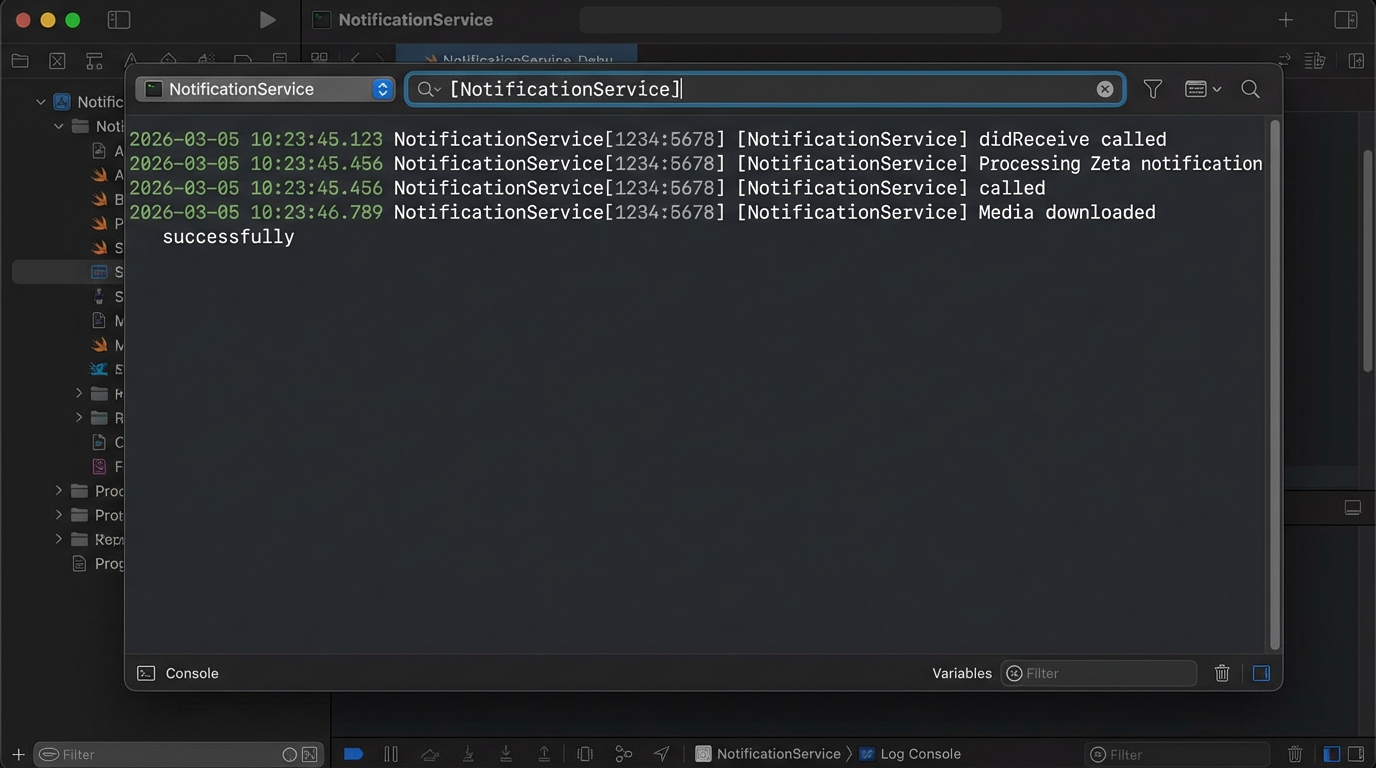
Xcode console filtered for extension logs
If you don't see the log, the extension isn't being invoked — see troubleshooting below.
Confirm delivery tracking
After the notification arrives, open the app. ZetaCore reads the delivery records from the shared UserDefaults suite on its next sync cycle. If you initialized with isLoggingEnabled: true, you'll see log entries confirming the delivered events were sent.
8. Verify via ZMP
Wire up the main app
- Initialize the SDK in app Delegate
- Launch the app and enable push permission
- This shall pass the device token to Zeta.
- code: refer section: 5. Wire Up the Main App
create user session
ZetaClient.shared.user?.build { user in
      user.uid = "Test Mar 5 User"
      //  or
      user.emailId = "[email protected]"
}
User Profile
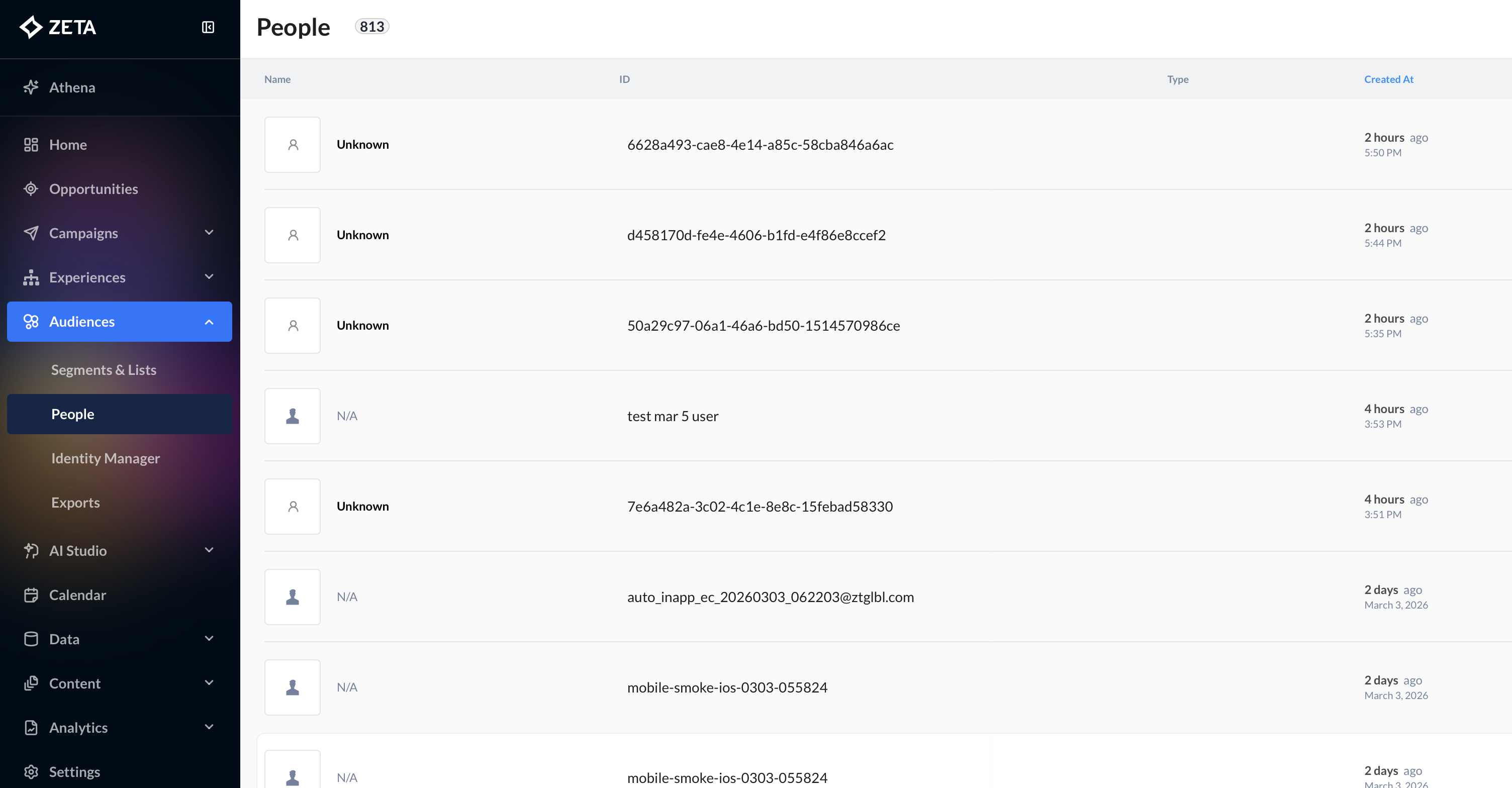
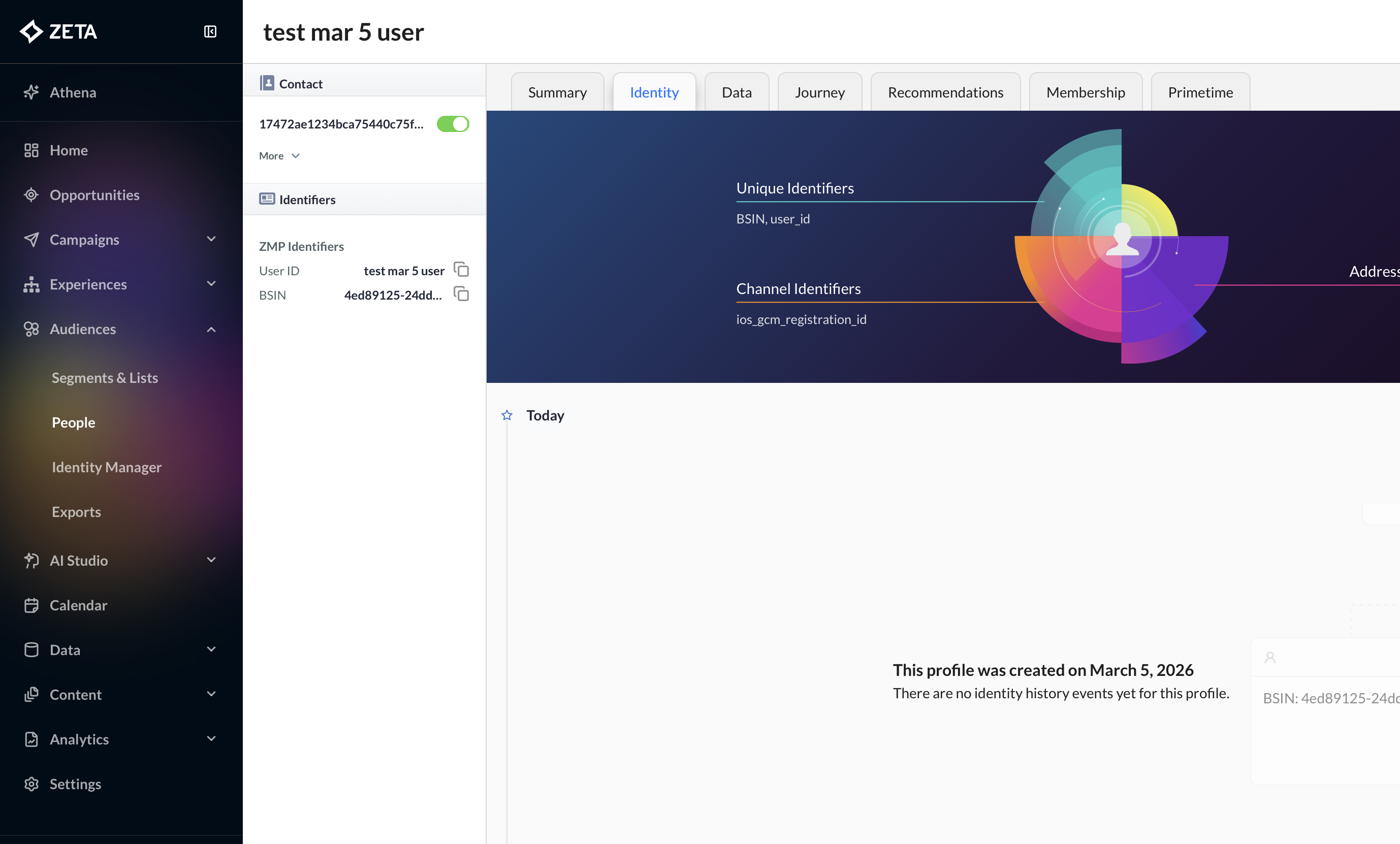
- In ZMP, navigate to audience → people
- user profile with same identifier shall be visible eg.
test mar 5 user
Audience Segment
- navigate to audience → Segments & Lists → explore audience
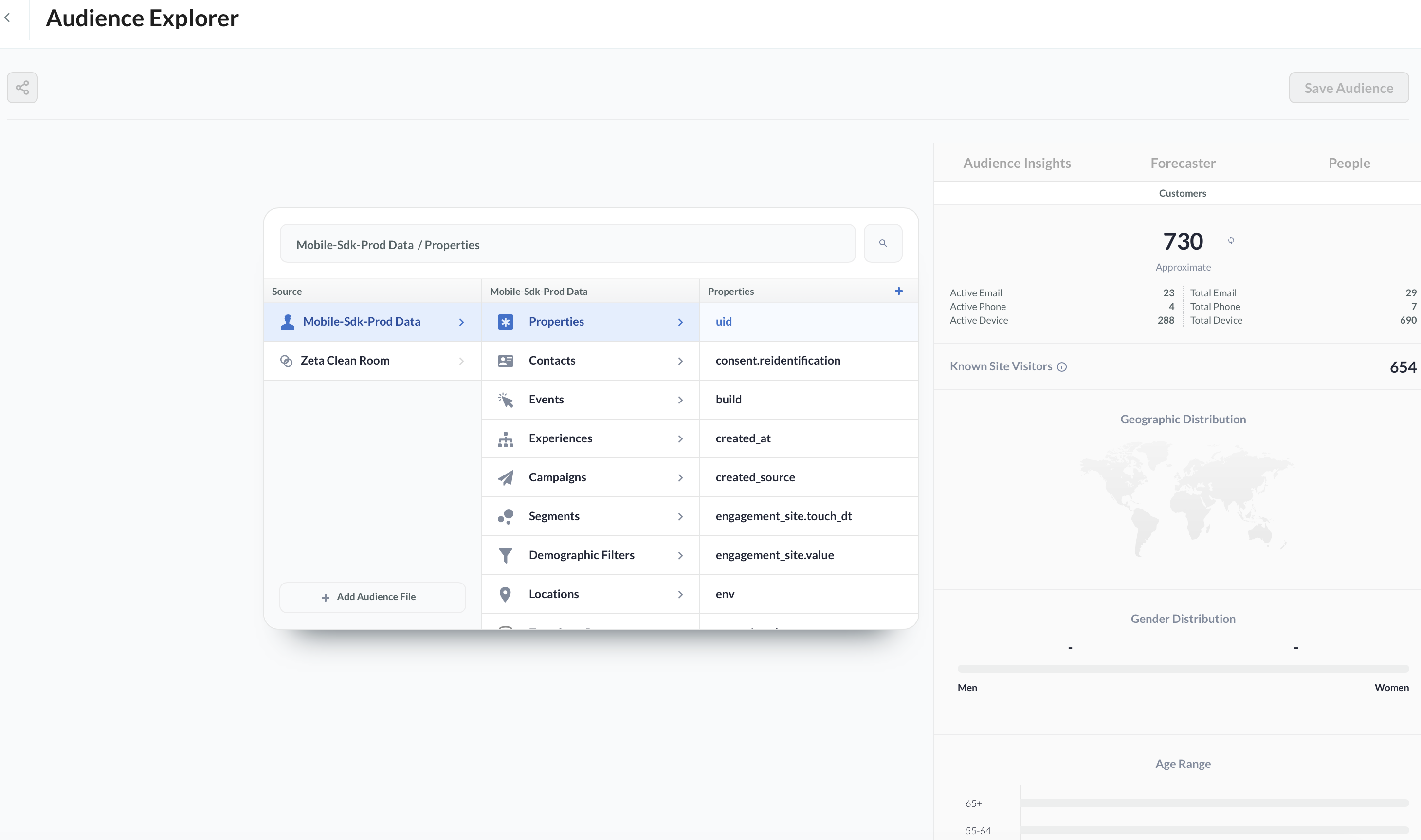
filter by uid
- create an audience segment based on user profile
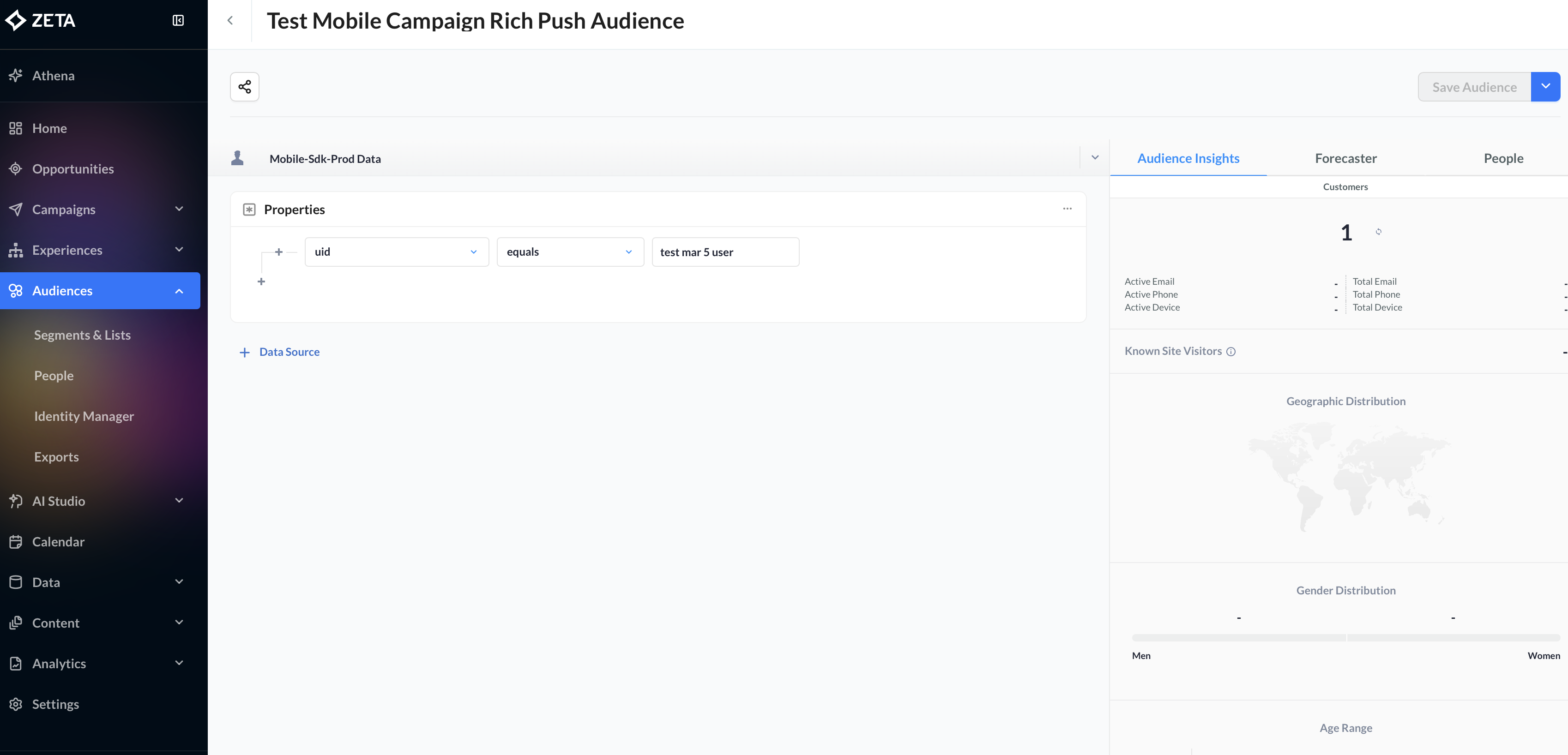
filter by user's uid
Broadcast Campaign
- navigate to campaigns → broadcast campaigns
- create a new broadcast campaign
- select channel as Mobile Push
- add details like Title, body , Asset for push
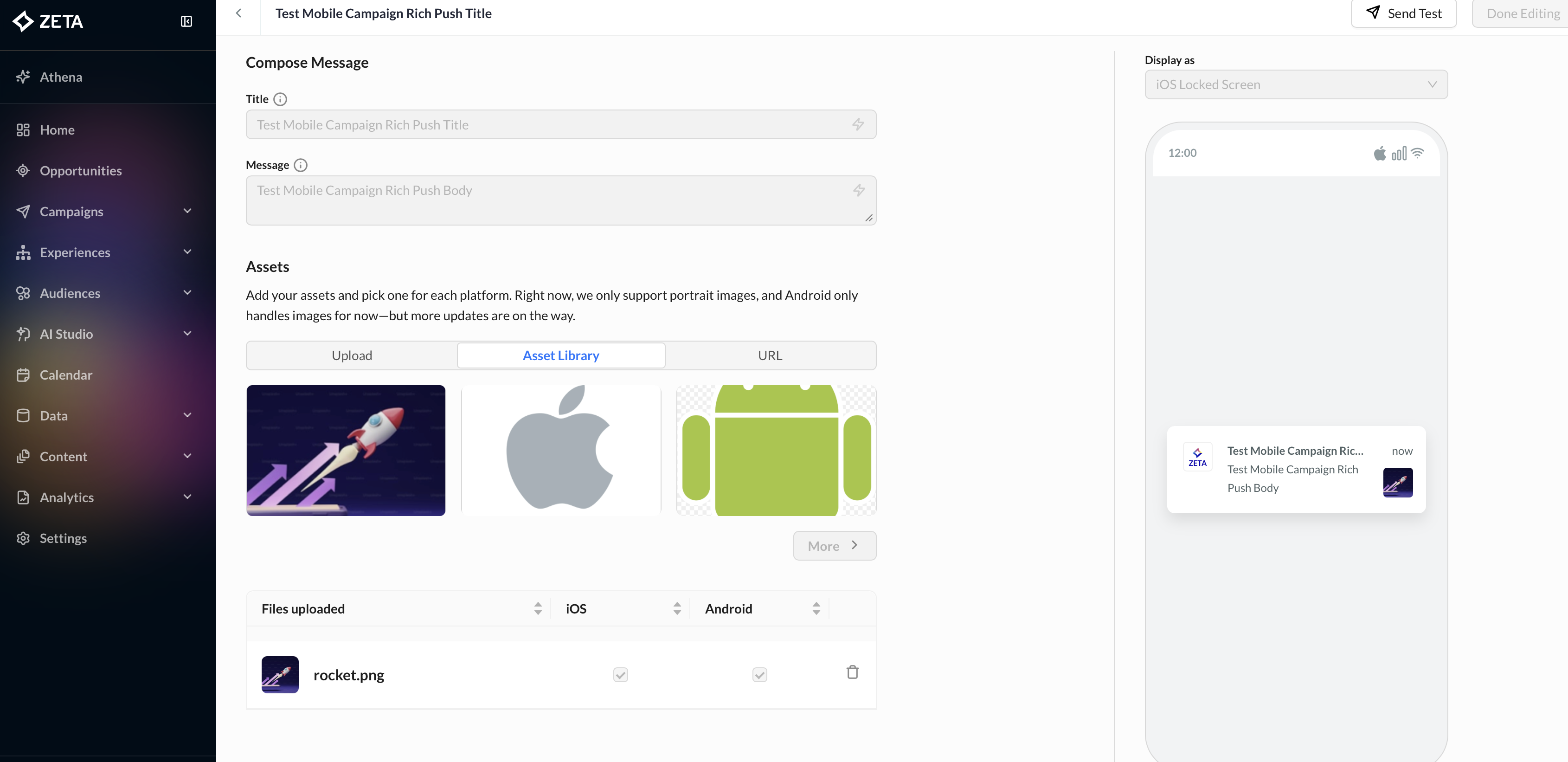
push notifications details
- include → add audience
- add audience segment in campaign
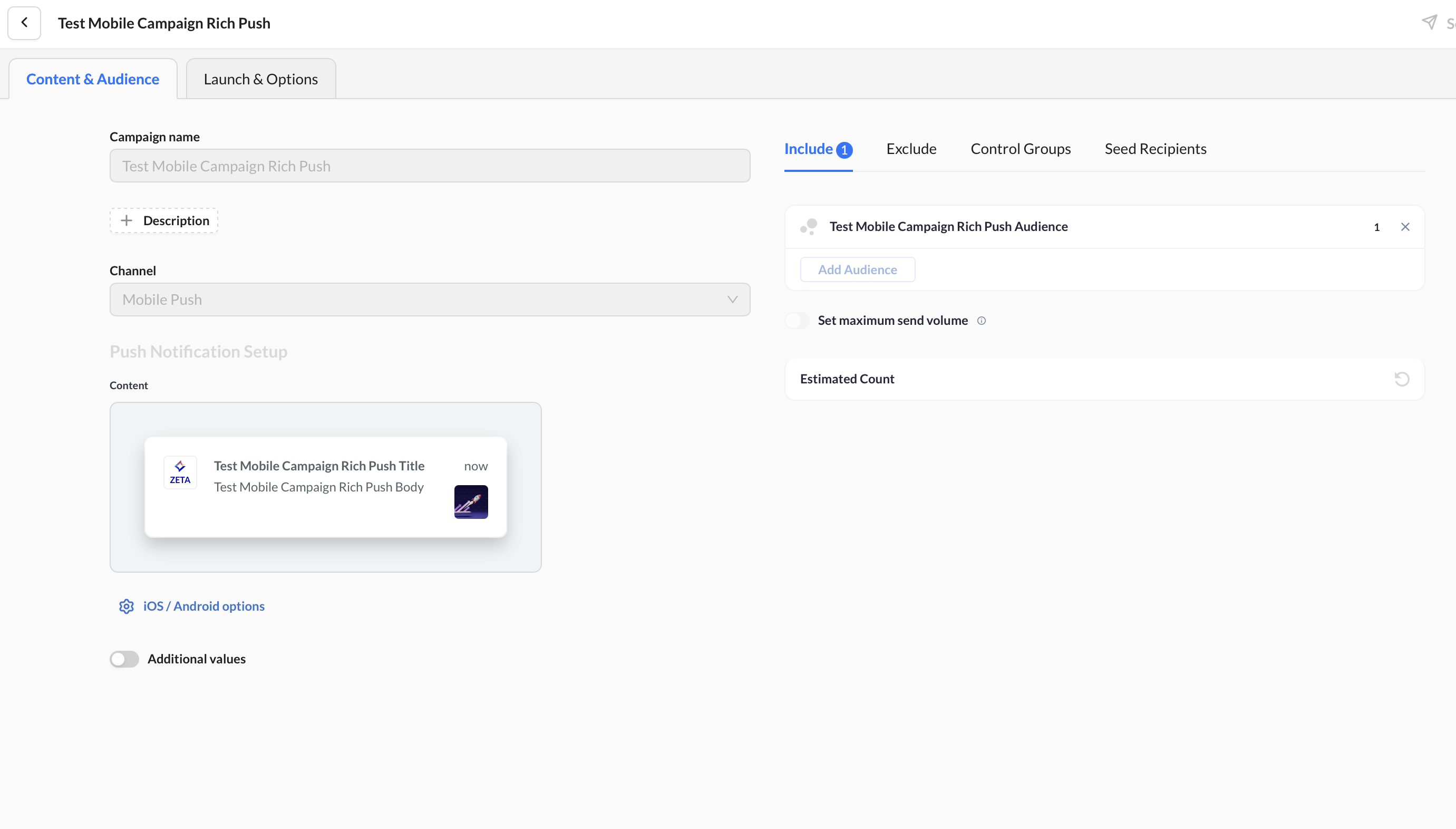
broadcast campaign
- go to Launch & Options
- trigger the campaign, triggers Message Sent event in user journey of profile.
Push Notification
- push notification shall be received on your device.
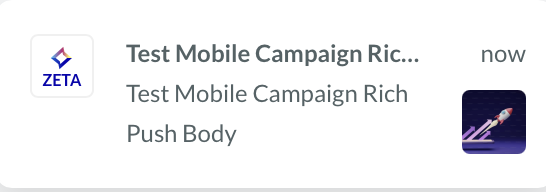
sample push notification
Track Push Notification Delivery
- once user taps on push notification or launches the app.
- triggers Message Delivered and Message Clicked events in user journey of profile.
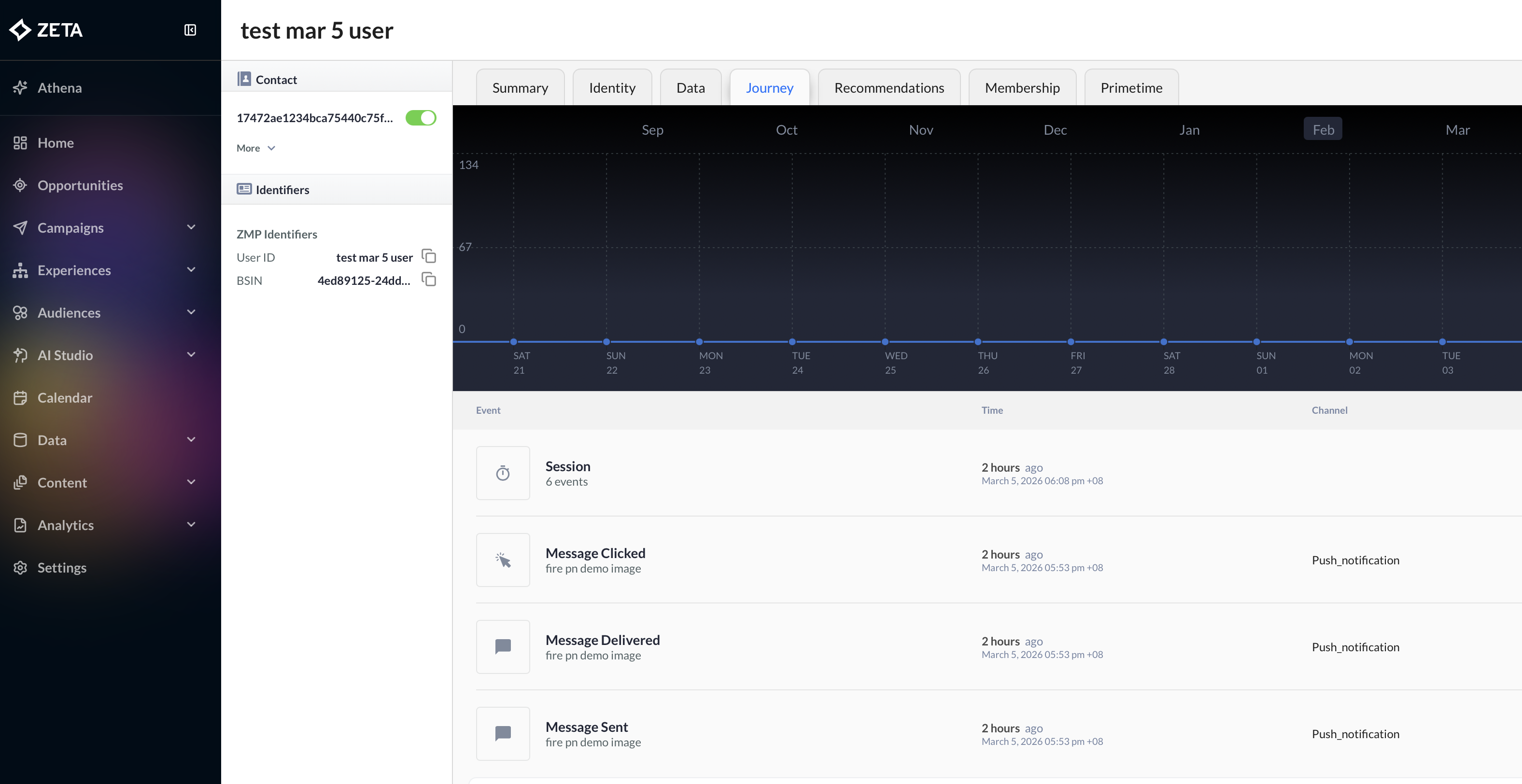
track events for push notifications delivery
9. Troubleshooting
Nothing arrives on device
- Check the device token. Print it in
didRegisterForRemoteNotificationsWithDeviceTokenand confirm your backend has it. Tokens change when you switch between sandbox and production builds. - Check provisioning. The main app's App ID must have Push Notifications enabled. Both the main app and extension must be in the provisioning profile (Development for debug, Distribution for release).
- Check the APNs environment. Debug builds need sandbox; release builds need production. See Sandbox vs. Production.
Extension does not run (no rich media, no tracking)
- Test on a real device. Notification Service Extensions are not reliably exercised on the simulator.
- Check the payload. Zeta notifications must include
com.zmp.ios.datain userInfo forcanHandle(_:)to returntrue. If the payload is missing this key, the SDK won't process it. - Check your target dependency. Make sure
ZetaNotificationServiceis linked to the extension target, not just the main app. - Check the extension's bundle ID. It needs its own App ID with App Groups enabled in the Developer portal.
Image does not appear
- Check the media URL. Open it in a browser — it must be reachable over HTTPS and return a valid image content type.
- Check network access. The extension needs outbound network access. VPNs, firewalls, or App Transport Security rules can block the download.
- Check media size. The extension gets roughly 30 seconds total. The SDK uses a 25-second internal timeout for the download. Large files on a slow connection may not finish in time — the notification will still be delivered, just without the attachment.
Delivery tracking is not working
- Check the App Group ID. It must be identical in three places: the main app's entitlements, the extension's entitlements, and the string you pass to
trackNotificationDelivered(_:appGroupId:). - Check call order. Call
trackNotificationDeliveredbeforehandleNotification. The tracking writes toUserDefaults; the notification handler calls the content handler and may complete before tracking finishes if the order is reversed. - Check ZTConfig. The
appGroupIdyou pass toZTConfigon the main app side must match the extension. ZetaCore reads from that suite to pick up delivery records. - No crash, no error, no data? An invalid or nil App Group ID fails silently by design. Double-check for typos.
Build errors
| Error | Fix |
|---|---|
No such module 'ZetaNotificationService' | Confirm the library is added to the extension target in your SPM package dependencies (or the xcframework is linked). Clean build folder (Cmd+Shift+K) and rebuild. |
| Duplicate symbols | You've linked ZetaNotificationService to both the main app and the extension. Remove it from the main app target. |
| Minimum deployment target | Set the extension's deployment target to iOS 13.0 or higher. |
| Signing errors | The extension needs its own App ID in the Developer portal, included in both Development and Distribution profiles. |
Quick Reference
What goes where:
| Item | Main app target | Extension target |
|---|---|---|
ZetaCore | Yes | No |
ZetaNotificationService | Yes | Yes |
| Push Notifications capability | Yes | Optional |
| App Groups capability | Yes (shared group) | Yes (same group) |
API at a glance
| Method | Purpose |
|---|---|
ZTNotificationService.canHandle(_:) | Returns true if notification is from Zeta |
ZTNotificationService.handleNotification(_:withContentHandler:) | Downloads media and delivers the enriched notification |
ZTNotificationService.trackNotificationDelivered(_:appGroupId:) | Records delivery for analytics (via shared App Group) |
Updated 4 months ago